
From your portal, you can view and manage your treatments, order medication, organise blood tests, access educational resources, contact our support team, join the Primal Zone Community, and keep your personal details up to date.
This guide walks you through each section of the Patient Portal and explains what you can do.
Navigating Your Patient Portal
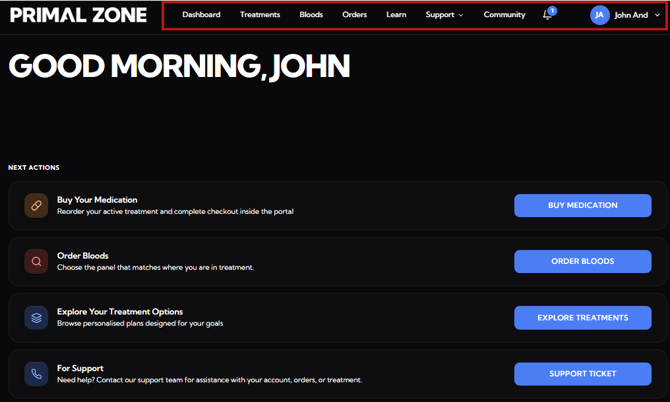
Once you are logged in, you will see the main navigation menu across the top of the portal:
- Dashboard
- Treatments
- Bloods
- Orders
- Learn
- Support
- Community
- Profile
Simply select the section you need from the menu.
1. Dashboard Page
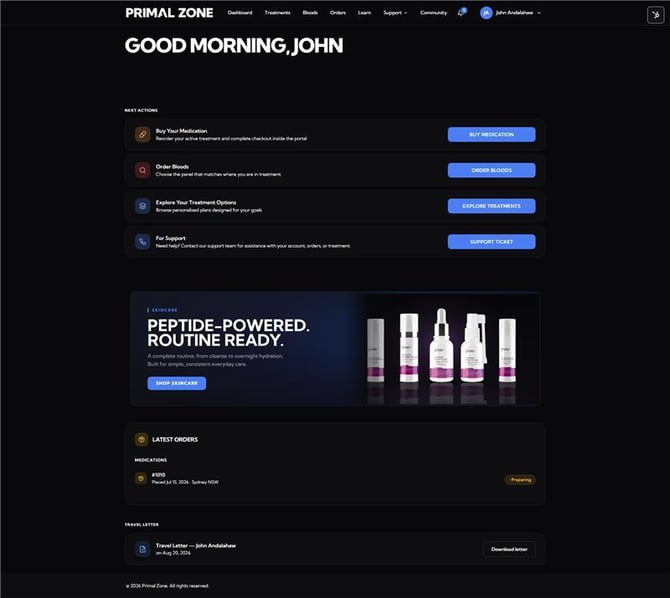
The Dashboard is your Patient Portal home page and gives you a quick overview of what you may need to do next.
-
Buy Your Medication: Select Buy Medication to view and order medication currently available through your prescription.
-
Order Bloods: Select Order Bloods to access the blood test options available through Primal Zone.
-
Explore Your Treatment Options: Select Explore Treatments to view the treatment programs currently available through Primal Zone.
-
For Support: If you need assistance with your account, treatment or an order, select Support Ticket to contact our Patient Care team.
-
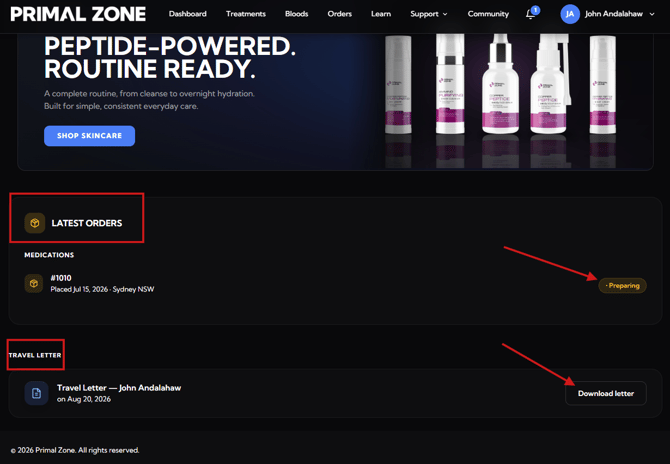
Latest Orders: Further down your Dashboard, the Latest Orders section shows your most recent medication order and its current status.
-
Travel Letter: If a travel letter has been prepared for you, it will appear under the Travel Letter section of your Dashboard. Select Download letter to access your document.
2. Treatments Page
The Treatments page is where you can view and manage your treatment journey.
Select Treatments from the main navigation menu.
My Treatments
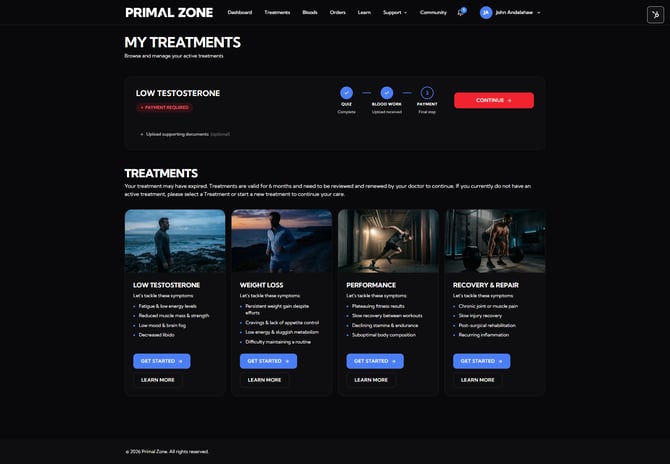
If you have started a treatment application, it will appear at the top of the page under My Treatments.
You can see where you currently are in the application process, including steps such as:
- Health Quiz
- Blood Work
- Payment
If there is an outstanding action, the treatment card will show what is required.
Select Continue to complete your next step.
You may also have the option to upload supporting documents where required.
Explore Treatments
Below your current treatments, you can explore the treatment programs available through Primal Zone, including:
- Low Testosterone
- Weight Loss
- Performance
- Recovery & Repair
Select Get Started to begin an application or Learn More for further information about a treatment option.
Please note: Your available options and treatment recommendations will depend on your individual circumstances and clinical assessment.
3. Bloods Page
The Bloods page allows you to organise blood testing and access blood work associated with your treatment.
Select Bloods from the main navigation menu.
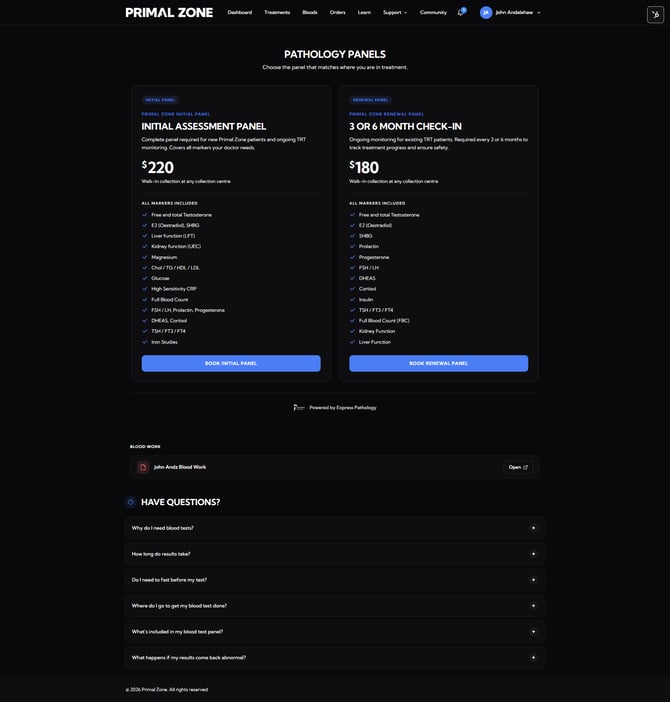
Pathology Panels
Available pathology panels are displayed at the top of the page.
These include:
-
Initial Assessment Panel: Designed for patients beginning their Primal Zone treatment journey or where an initial clinical assessment is required.
-
3 or 6 Month Check-In: Used for ongoing monitoring during treatment where repeat blood testing is required.
Each panel displays:
- The panel type
- Price
- Included blood markers
- Collection information
Select the relevant Book Panel button to proceed with your blood test.
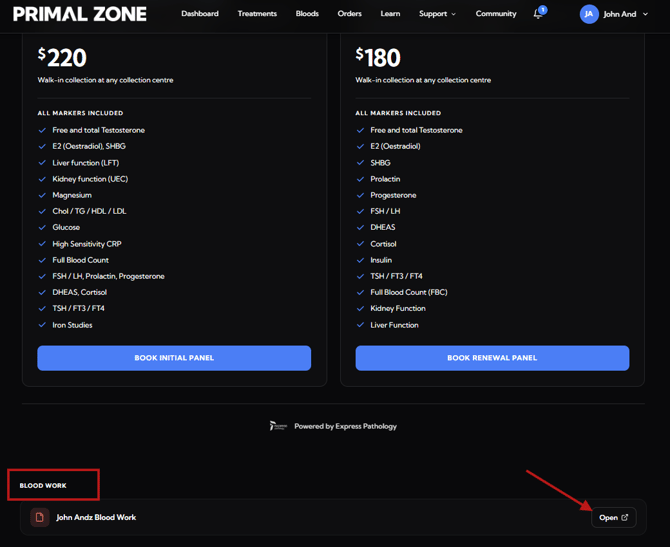
Your Blood Work
-
Any blood work available through your portal will appear under Blood Work.
-
Select Open to access the available record.
4. Orders Page
The Orders page is where you can view your available prescriptions, purchase eligible medication and check your recent orders.
Select Orders from the main navigation menu.
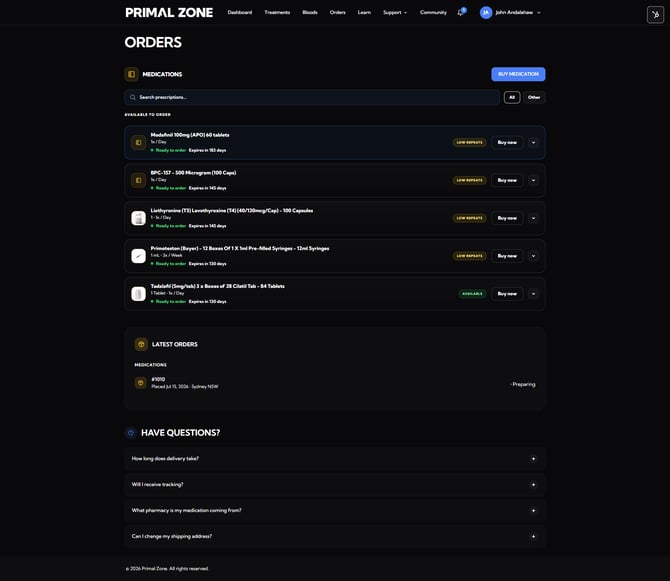
Medications
Your prescribed medications that are currently available through the portal will appear under Medications.
The information displayed may include:
- Medication name
- Prescribed dosage
- Whether it is ready to order
- Prescription expiry
- Repeat availability
- Purchase options
When medication is available for purchase, select Buy now to proceed.
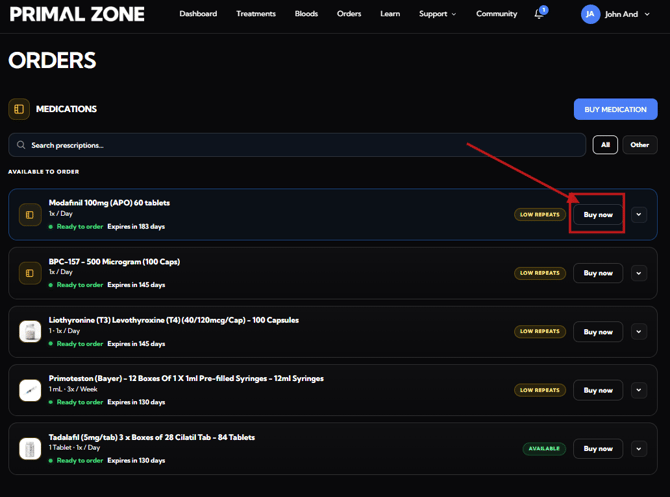
You can also use the Search prescriptions field to find a particular medication.
Buying Your Medication
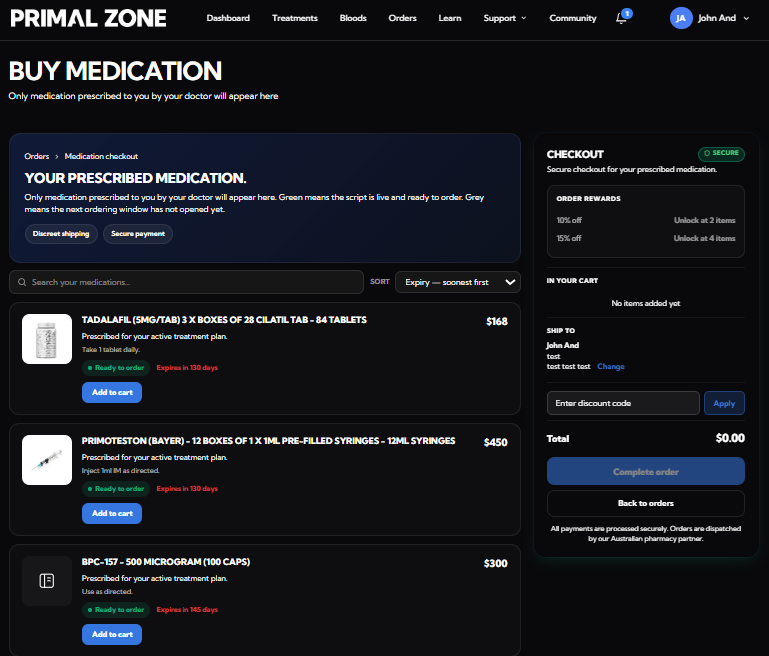
When you select Buy now from the Orders page, you will be taken to the Buy Medication page.
This page displays the medications from your active prescriptions that are currently available to order.
Adding Medication to Your Cart
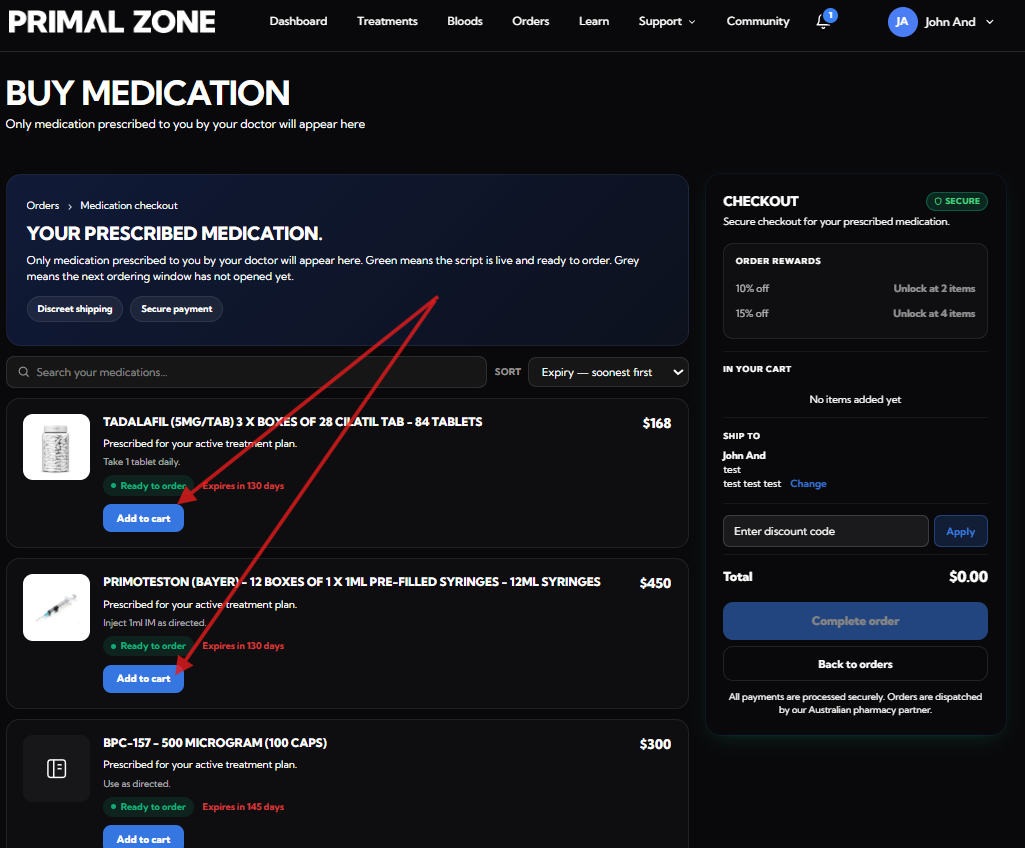
Find the medication you would like to purchase and select Add to cart.
You can add more than one available medication to your order before checking out.
For each medication, you can see important information such as:
- Medication name
- Price
- Whether it is ready to order
- Prescription expiry
Only medication currently prescribed and available to you will appear on this page.
Reviewing Your Cart
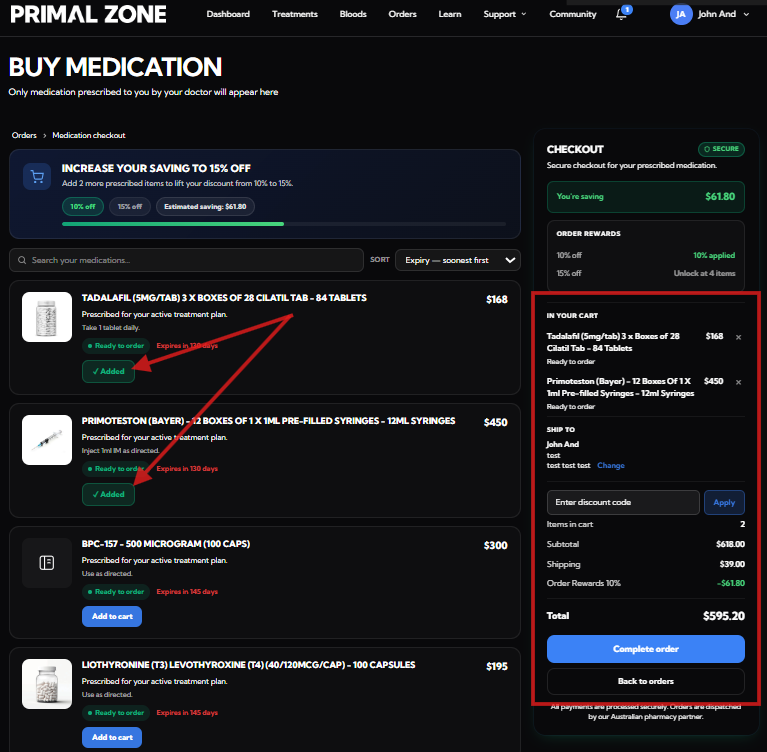
Your cart appears in the Checkout section on the right-hand side of the page.
Before placing your order, review:
- Medication(s) in your cart
- Subtotal
- Shipping fee
- Discounts, if applicable
- Total order amount
Order Rewards
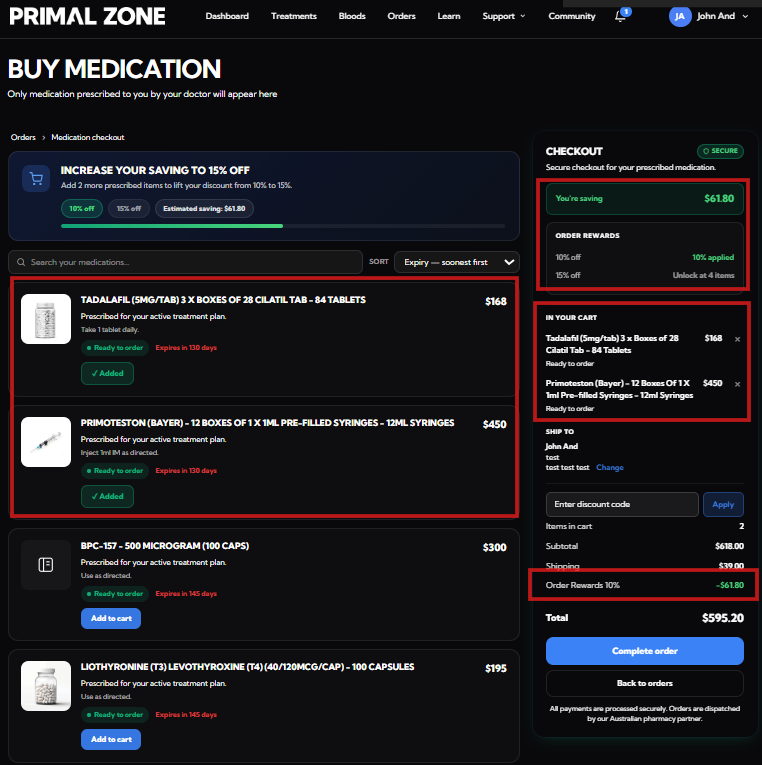
Eligible orders may automatically receive an Order Rewards discount based on the number of medications included in the same order.
The checkout page will show the applicable discount and how many items are required to unlock the available reward.
If you have a separate discount code, enter it in the discount code field and click apply.
Completing Your Order
Once you have confirmed your medications, delivery and card details and total amount, select "Pay now" to proceed with your purchase.
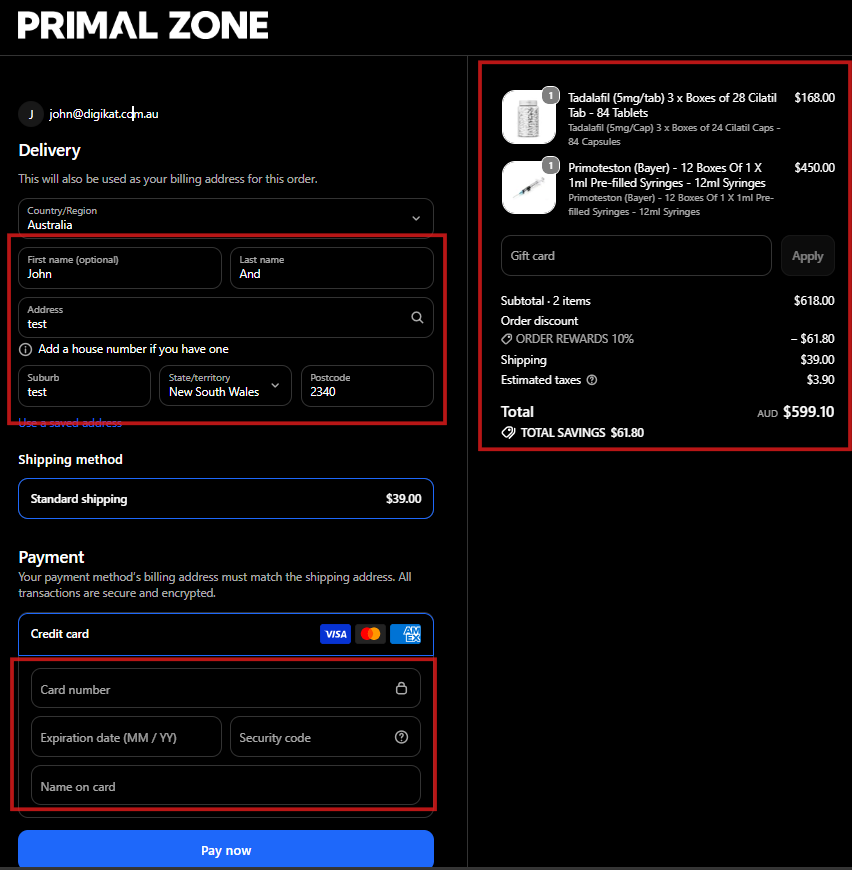
After your order has been successfully placed, you can return to the Orders page to view its latest status.
Viewing Prescription Details
Select the arrow on the right-hand side of a medication to expand its prescription details.
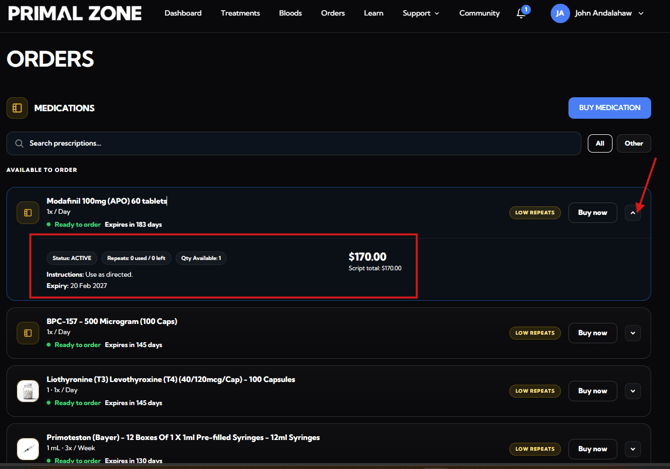
Depending on the prescription, you may be able to view:
- Prescription status
- Repeats used and remaining
- Quantity available
- Instructions
- Prescription expiry
- Medication price
This can help you understand the current status of your prescription before placing an order.
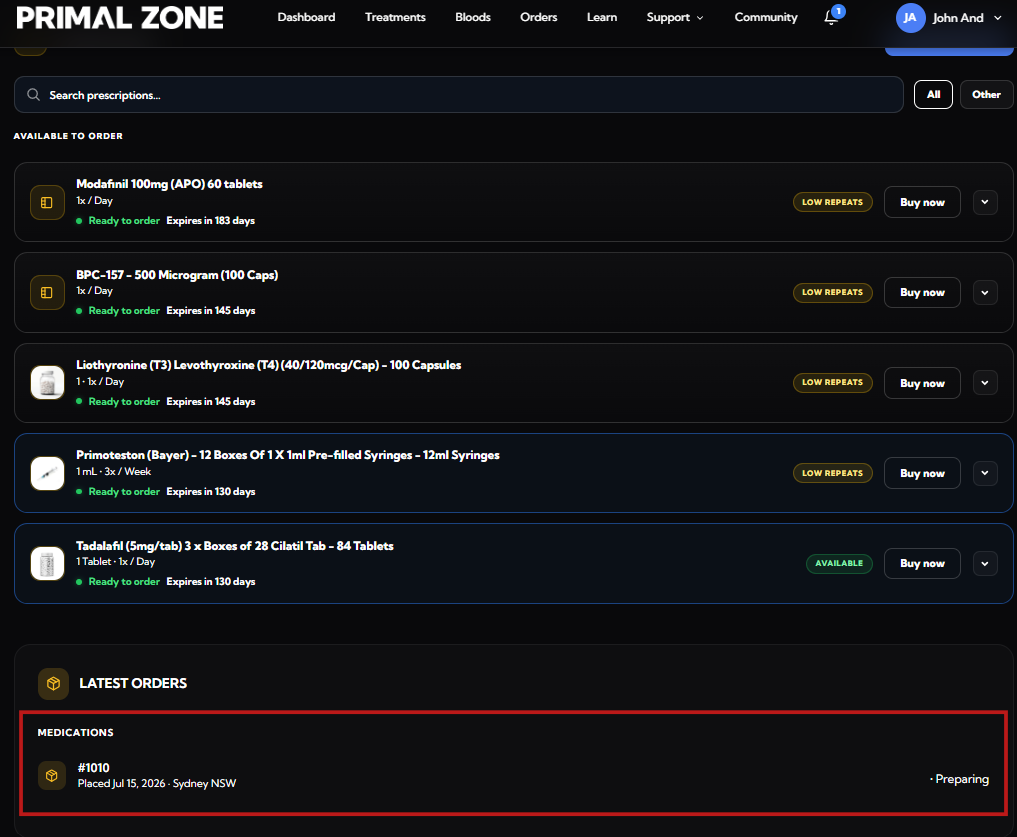
Latest Orders
Your recent medication orders are displayed under Latest Orders.
Here you can see information such as your:
- Order number
- Order date
- Delivery location
- Current order status
The page also contains answers to common questions about delivery, tracking, pharmacies and shipping addresses.
5. Learn Page
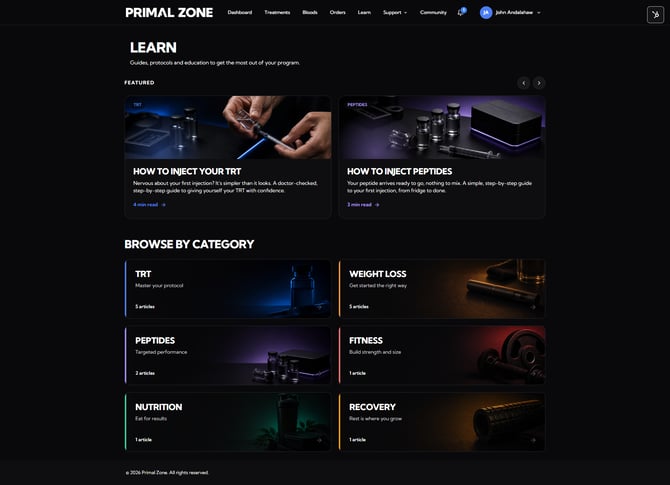
The Learn section contains educational resources, guides and protocols designed to help you understand and get the most out of your program.
Select Learn from the main navigation menu.
Featured Guides
Featured resources appear at the top of the page and may include practical guides relevant to your treatment, such as:
- How to inject TRT
- How to inject peptides
Select an article to read the full guide.
Browse by Category
You can also browse educational content by topic, including:
- TRT
- Weight Loss
- Peptides
- Fitness
- Nutrition
- Recovery
New resources may be added over time, so you can return to the Learn section whenever you need additional information.
6. Support Page
If you need assistance, select Support from the main navigation menu.
There are two main options:
- Knowledge Base
- Support Tickets
Knowledge Base
The Knowledge Base contains answers and step-by-step guides covering common questions about Primal Zone and the Patient Portal.
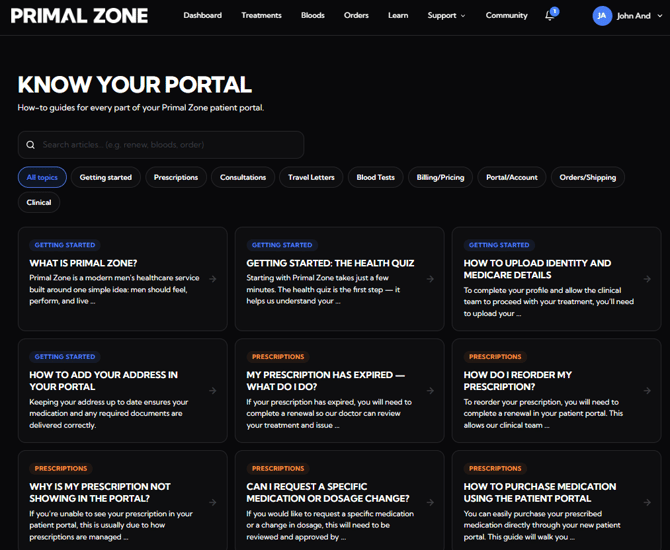
You can browse articles by topic or use the search bar to find information about a particular issue.
Topics include:
- Getting Started
- Prescriptions
- Consultations
- Travel Letters
- Blood Tests
- Billing & Pricing
- Portal & Account
- Orders & Shipping
- Clinical questions
We recommend checking the Knowledge Base first, as the answer to many common questions may already be available.
If you still need assistance, you can create a support ticket.
Support Tickets
Select Support → Support Tickets to view or contact the Primal Zone support team.
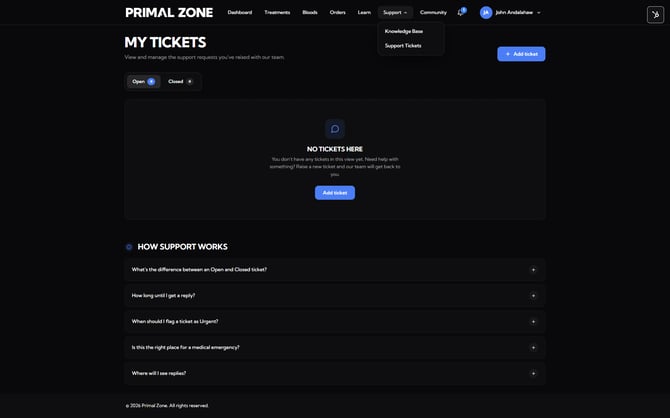
The My Tickets page allows you to view and manage support requests you have raised.
Tickets are separated into:
- Open – requests that are currently active
- Closed – requests that have been resolved
Creating a New Support Ticket
Select Add ticket to submit a new request to our Patient Care team.
Use a support ticket when you need assistance with something specific to your account, treatment, prescription or order that you cannot resolve through the Knowledge Base.
Once submitted, you can return to My Tickets to keep track of your request and responses.
7. Community Page
The Community gives Primal Zone patients a place to connect with other men on a similar journey.
Select Community from the main navigation menu.
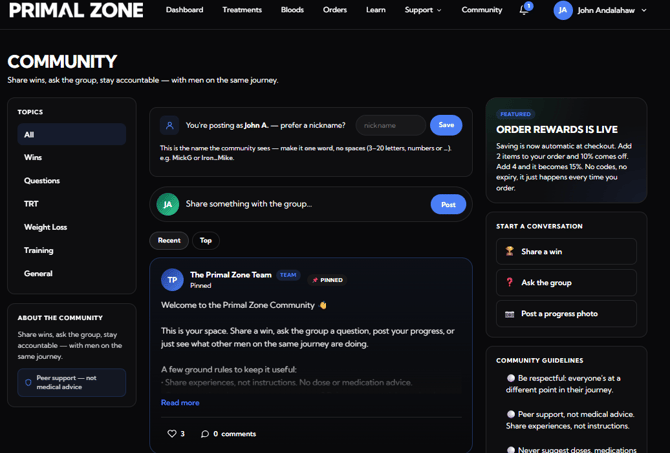
What You Can Do in the Community
You can browse conversations by topics such as:
- Wins
- Questions
- TRT
- Weight Loss
- Training
- General
You can also:
- Share a post
- Ask the group a question
- Share a win
- Post a progress photo
- Like and comment on community posts
Your Community Name
You can choose the name or nickname displayed to other Community members.
This allows you to participate without necessarily displaying your full name.
Community Guidelines
The Community is intended for peer support and shared experiences — not medical advice.
Please be respectful of other members and do not provide medication, dosage or clinical instructions to other patients.
For questions about your own treatment or medication, please contact the Primal Zone clinical or Patient Care team instead.
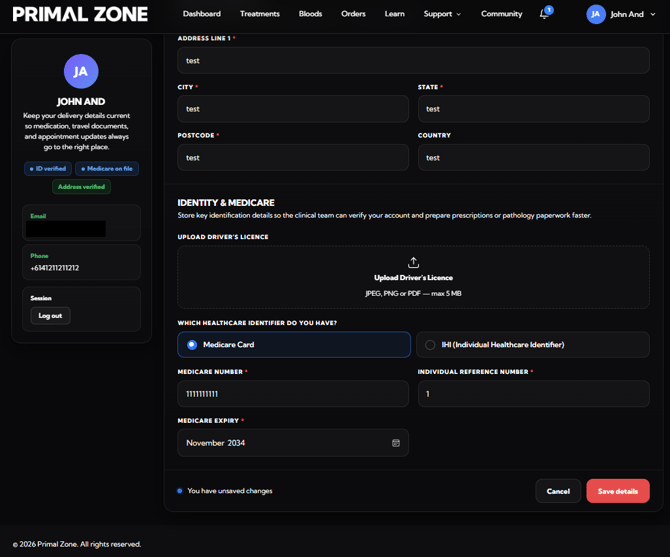
8. Profile Page
Your Profile is where you can review and update important personal information associated with your Primal Zone account.
Select your name in the top-right corner of the portal to access your profile.
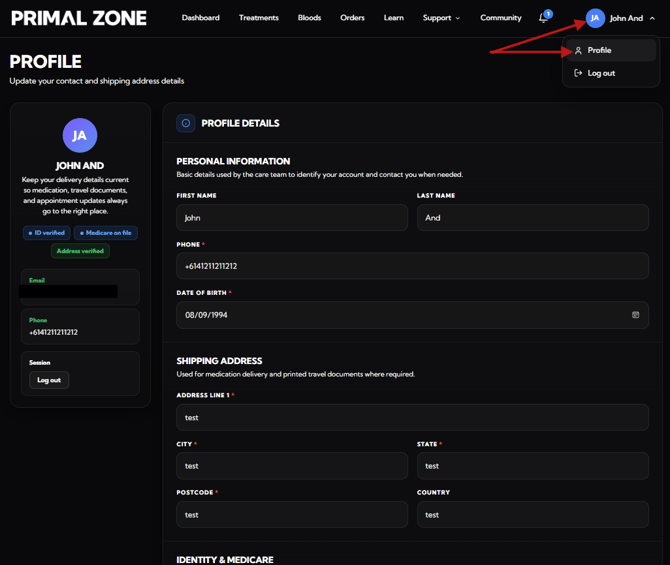
Personal Information
Your profile contains details such as:
- First name
- Last name
- Phone number
- Date of birth
- Email address
Shipping Address
Keep your shipping address accurate and up to date.
This information may be used for medication delivery and other documents associated with your treatment.
Identity & Medicare
You can also manage identification and healthcare information required for your account, including:
- Identification documents
- Medicare or Individual Healthcare Identifier (IHI)
- Medicare number
- Individual Reference Number
- Medicare expiry
Once you have made any changes, select Save details.
Keeping these details current helps ensure your prescriptions, pathology documentation, deliveries and treatment information are processed correctly.
Need More Help?
If you cannot find what you need in the Patient Portal:
- Open Support from the main menu.
- Select Knowledge Base and search for your question.
- If you still need assistance, select Support Tickets.
- Select Add ticket and send your request to the Primal Zone Patient Care team.
Our team will review your request and assist you further.