
How to Sign In
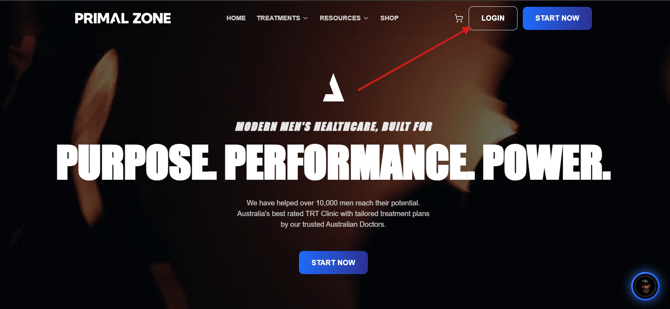
- Go to primalzone.com
- Click “Login” in the top-right corner
- Enter the email address you use with Primal Zone
- Click “Continue”
That’s it — the system will guide you to the right place.
What Happens Next
Depending on your account:
- Already have a password
→ You’ll go straight to your dashboard - Patient without a password yet
→ You’ll see a “Welcome Back” message to create your password - Not a patient yet
→ You’ll see “Account Not Found” and be prompted to start the health quiz
Understanding the Patient Portal
Once logged in, you’ll see the main navigation at the top of your portal:
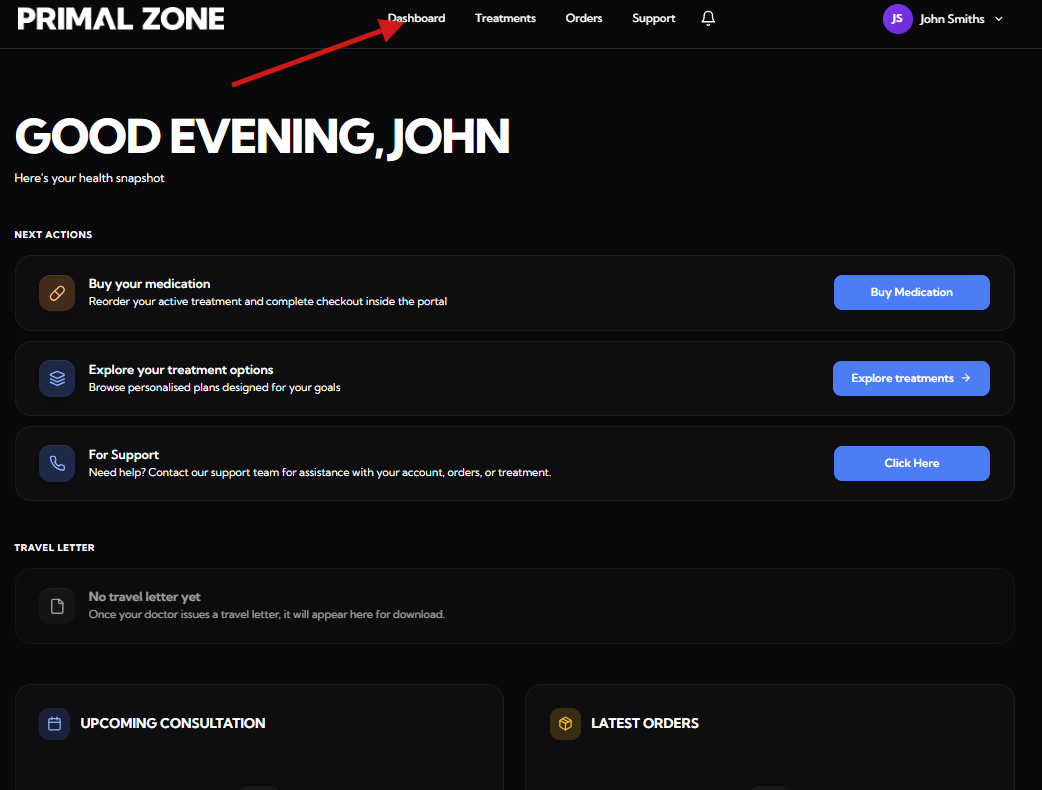
Dashboard
- Your main overview page
- Displays important updates, actions, and notifications
- Travel letters (if issued) will appear here
Treatments
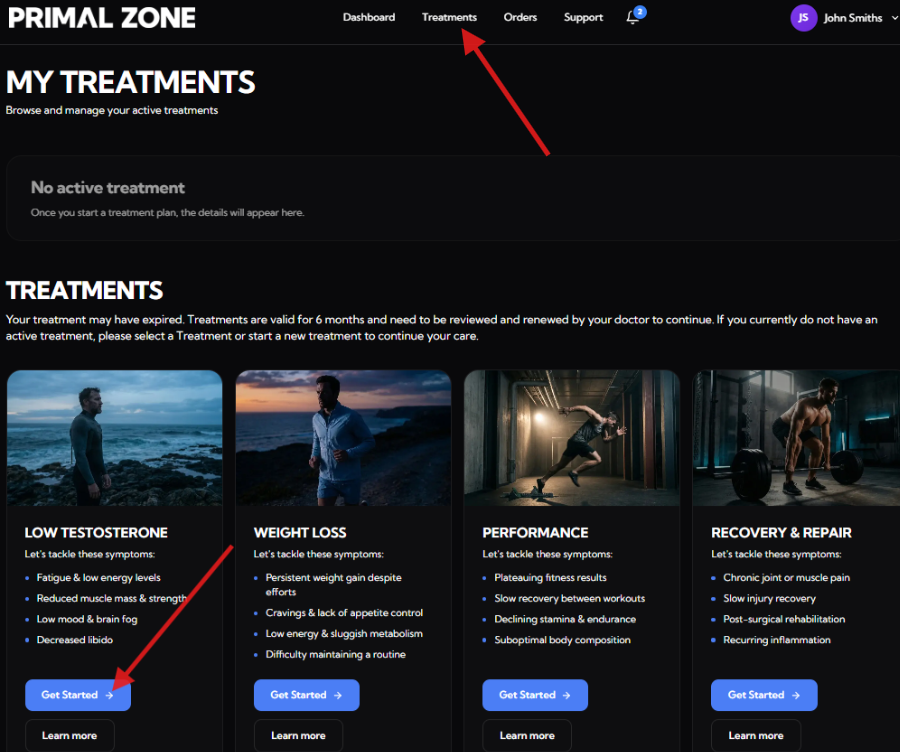
- View and manage your treatments
- Start a new treatment by clicking “Get Started”
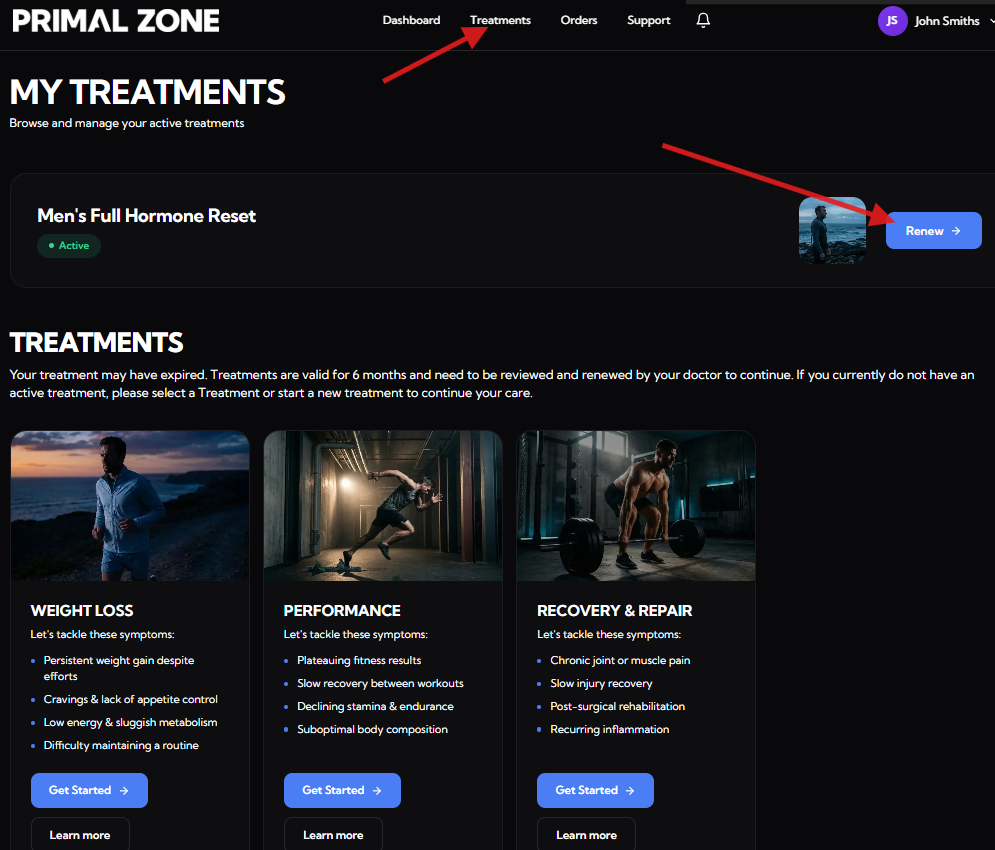
- If you already have an active treatment:
- You will see a “Renew” button when renewal is required
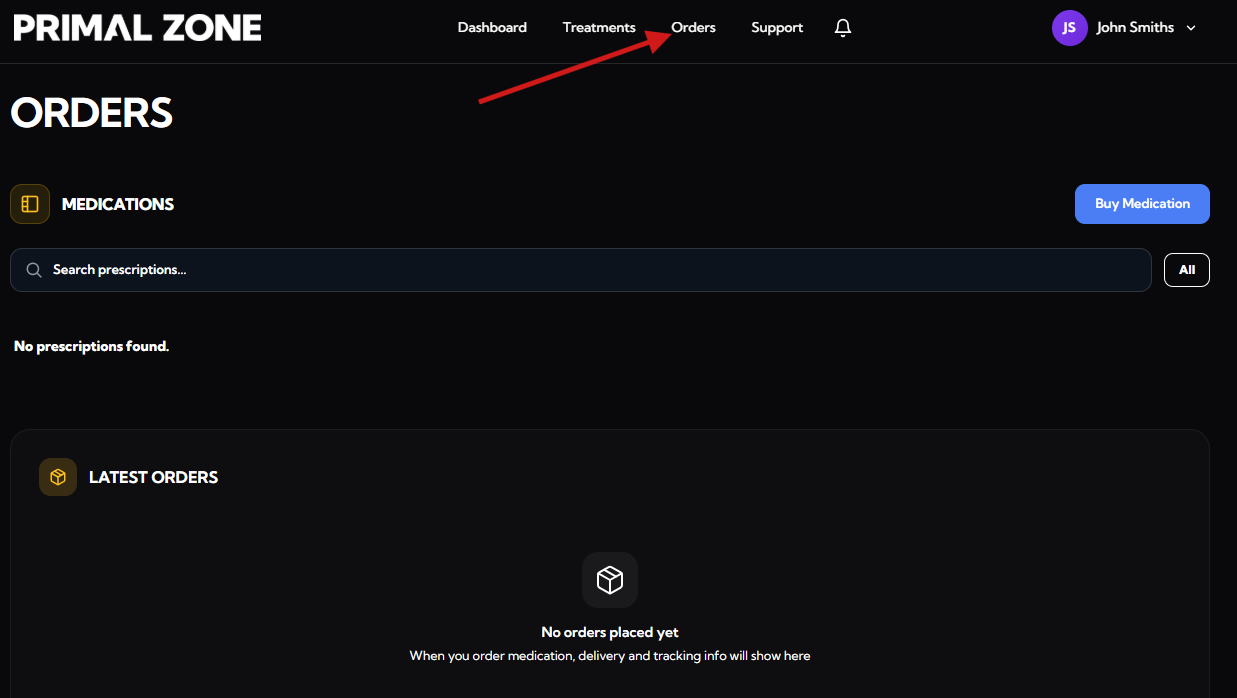
Orders
- View and manage your prescriptions
- Purchase medications directly from this page
- Order history and tracking details will appear here once available
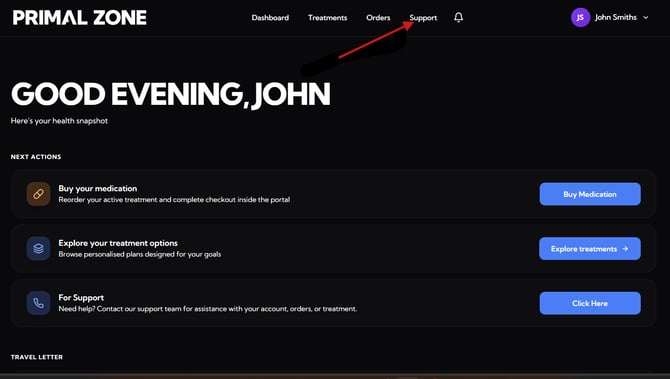
Support
- Contact our team for help or assistance
To submit a request:
- Click “Support”
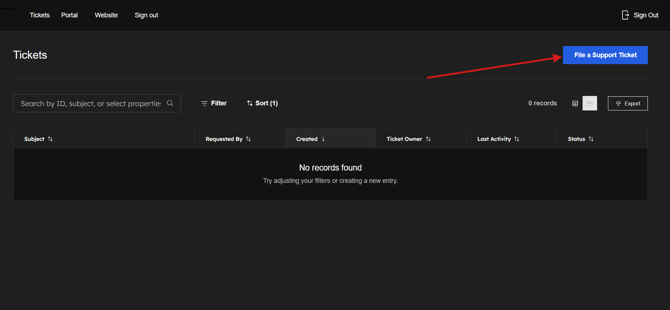
- You will be redirected to the Tickets page
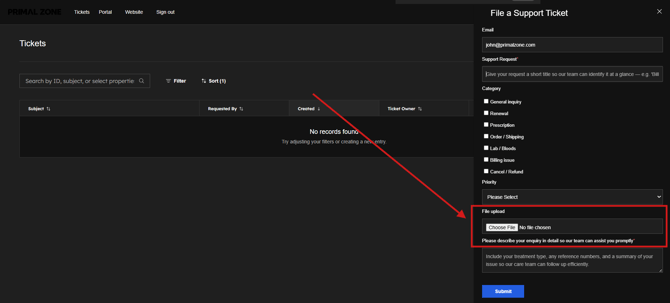
- Click “File a Support Ticket”
👉 Please include:
- A description of your issue
- A screenshot of the full page (to help us assist faster)
Our team will assist you as soon as possible.