
There are two ways to do this:
- Using the secure upload link
- Through your patient portal profile
Option 1 — Upload via Secure Link (Recommended)
Step 1 — Open the Upload Page
Click the secure link below:
👉 https://patient.primalzone.com/medicare
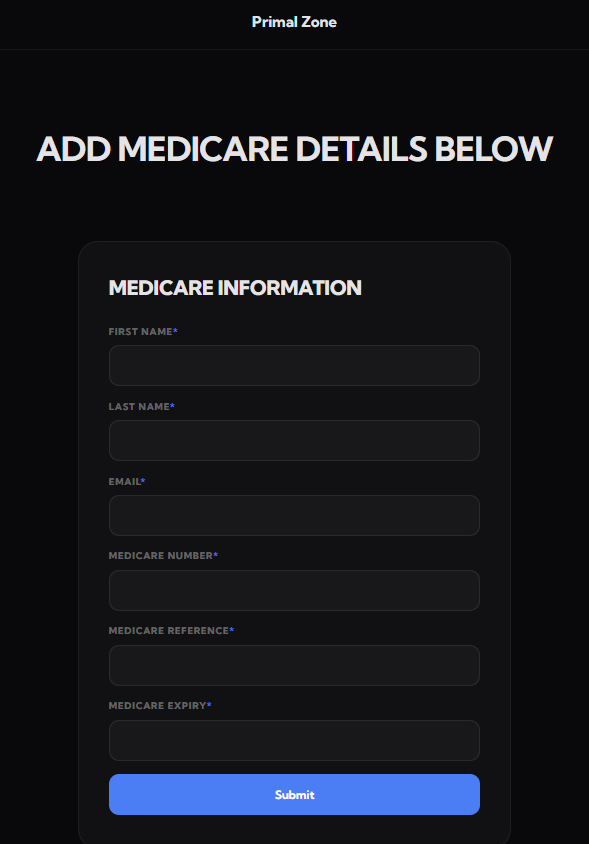
Step 2 — Enter Your Details
Fill in the required fields:
- First Name
- Last Name
- Email Address
- Medicare Number
- Medicare Reference Number
- Medicare Expiry
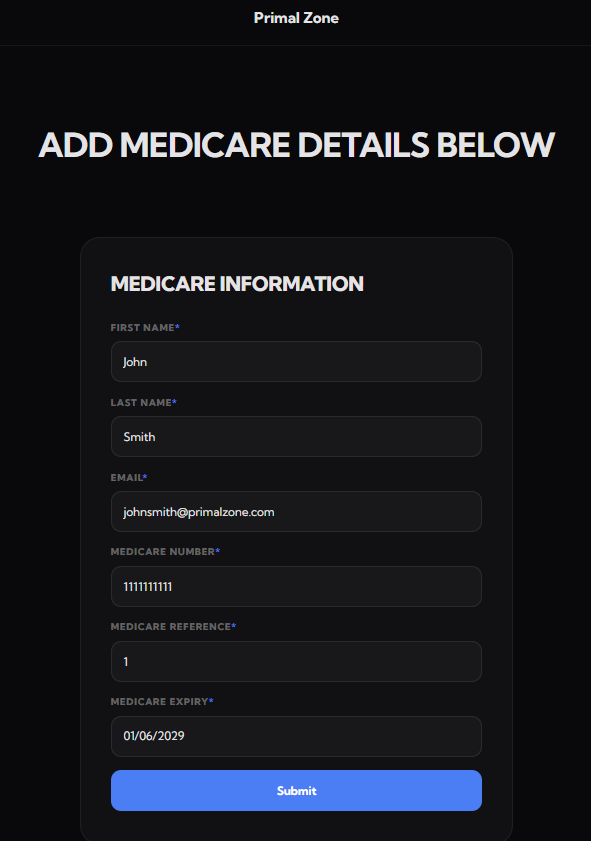
Step 3 — Submit
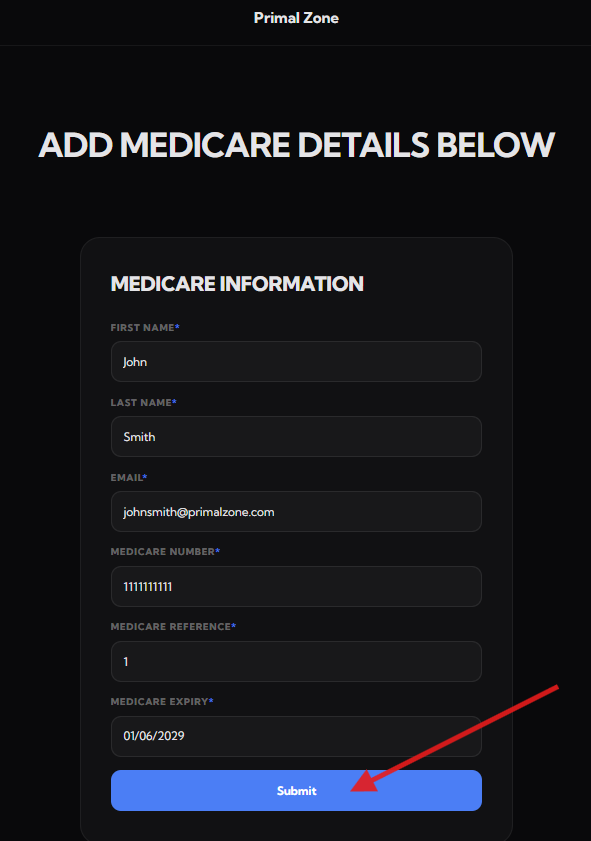
- Click “Submit” once all details are completed
- Your information will be securely sent to the clinical team
Option 2 — Upload via Patient Portal
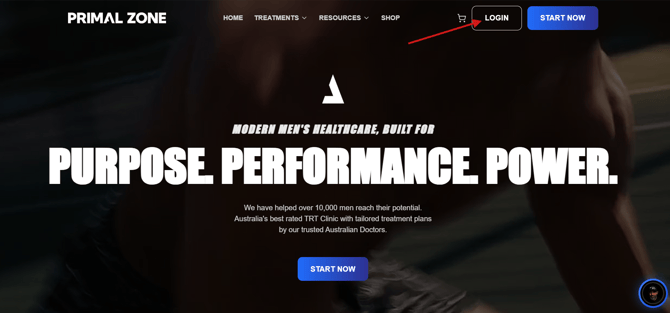
Step 1 — Log in to Your Portal
Log in to your Primal Zone patient portal
Step 2 — Go to Your Profile
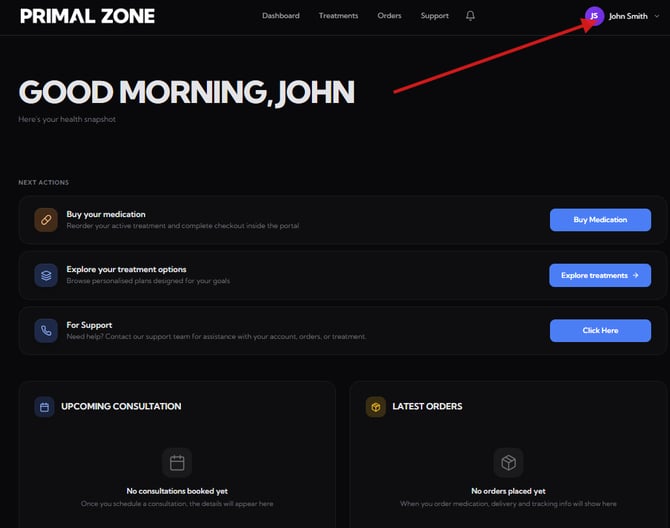
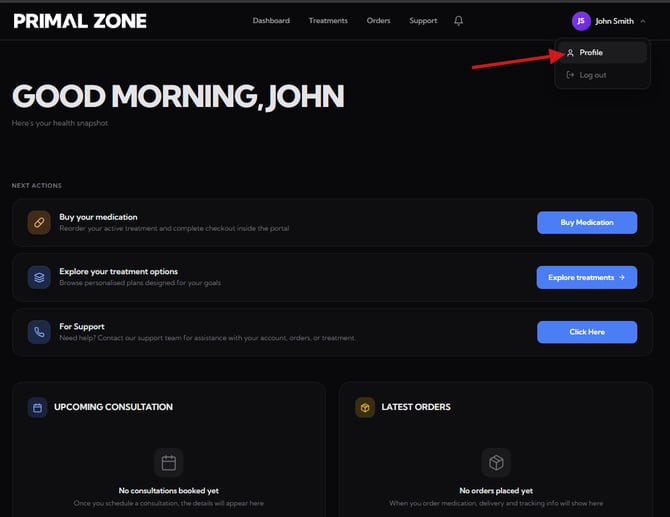
- Click your name in the top right corner
- Select “Profile”
Step 3 — Add Identity & Medicare Details
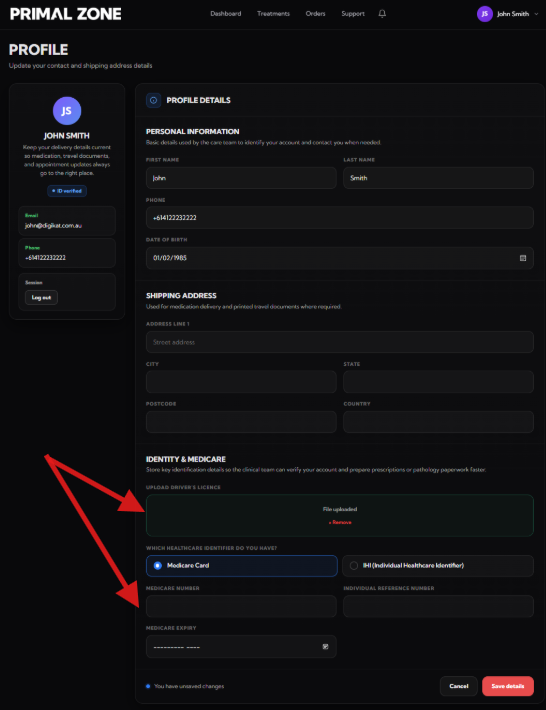
Scroll down to the “Identity & Medicare” section and:
- Upload your Driver’s Licence (or ID)
- Select your identifier:
- Medicare Card or
- IHI (Individual Healthcare Identifier)
- Enter:
- Medicare Number
- Reference Number
- Expiry Date
Step 4 — Save Your Details
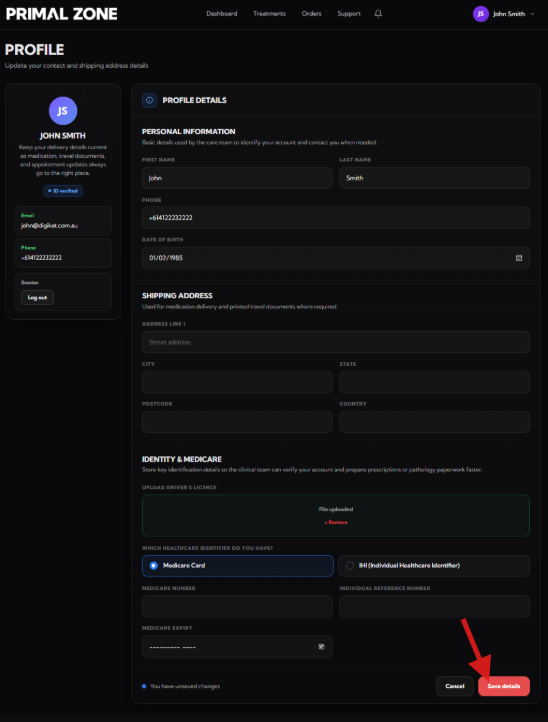
Click “Save details” to submit your information.
Step 5 — What Happens Next
Once submitted, our clinical team will review your details.
We’ll contact you if any additional information is needed or once everything has been successfully processed.
Need Help?
If you experience any issues uploading your Identity and Medicare details, please reach out to support and our team will assist you.
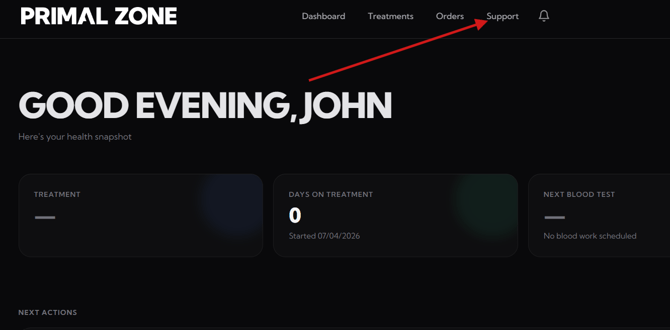
- Click the “Support” tab at the top of the portal
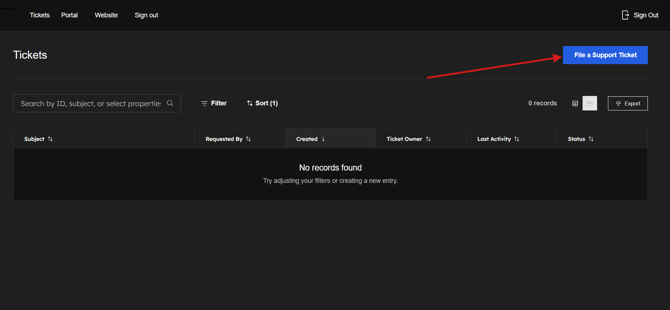
- You will be redirected to the Tickets page
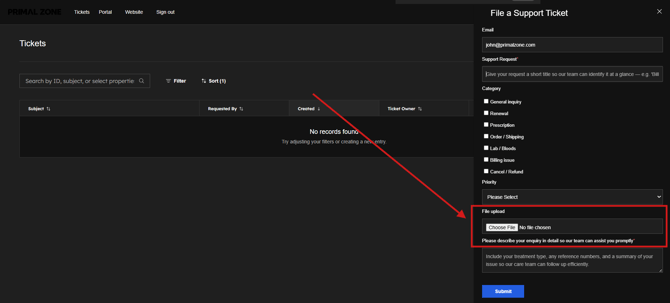
- Click “File a Support Ticket” to contact the team
- Please add a screenshot of the whole page where you encounter the issue. (This would help as identify and fix the problem efficiently)
Our team will assist you as soon as possible.