
Step 1 — Open the Upload Link
Click on this link: https://patient.primalzone.com/upload-bloods
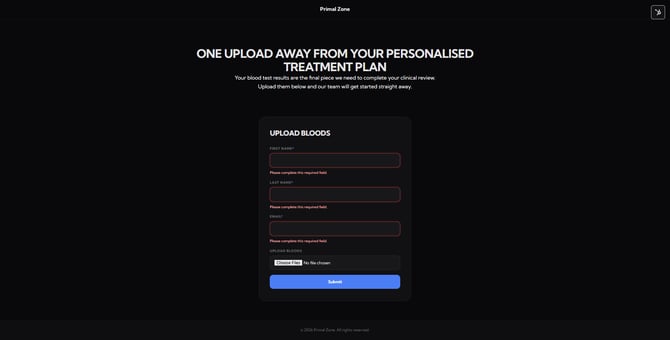
This will take you directly to the Upload Bloods page.
Step 2 — Enter Your Details
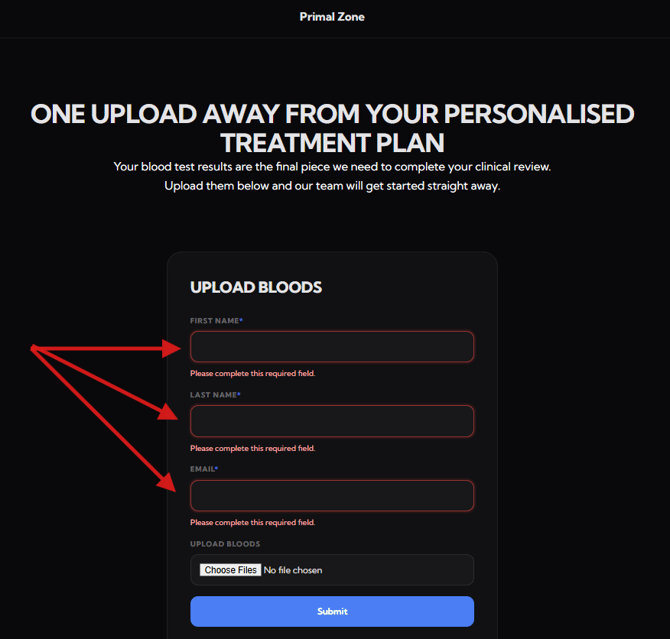
Fill in the required fields:
- First Name
- Last Name
- Email Address
Make sure these match the details used in your patient profile.
Step 3 — Upload Your Blood Test Results
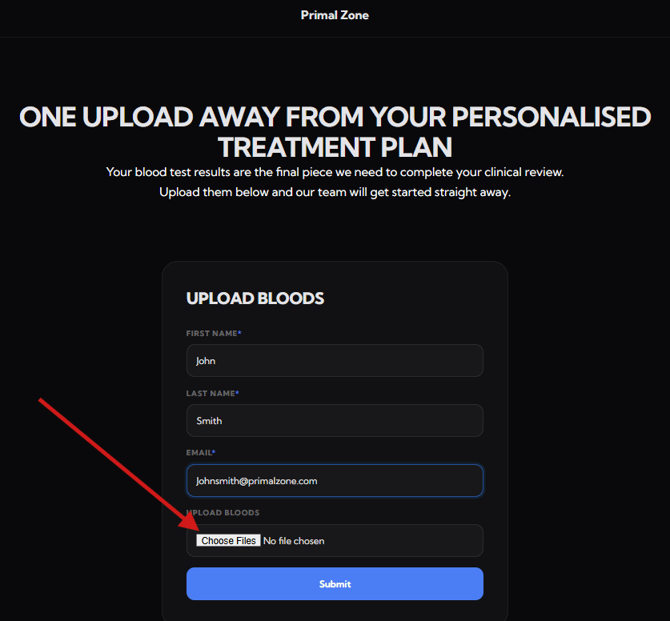
- Click “Choose Files”
- Select your blood test results from your device
- Ensure the correct file is uploaded
Note: Your blood tests should have been taken fasted and before 9:00 AM for accurate results.
Step 4 — Submit
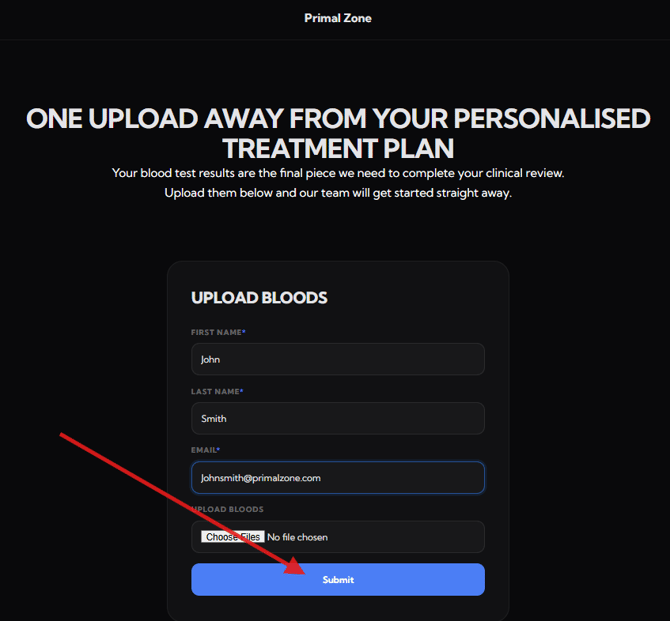
Once all fields are completed and your file is uploaded:
- Click “Submit”
Your results will be sent to the clinical team for review. We'll contact you once the review is finalised, with the next steps.
Step 5: You can also upload Blood Test Results In your Patient Portal
If you have purchased a blood test and received your results afterward:
- Log in to your Dashboard
-
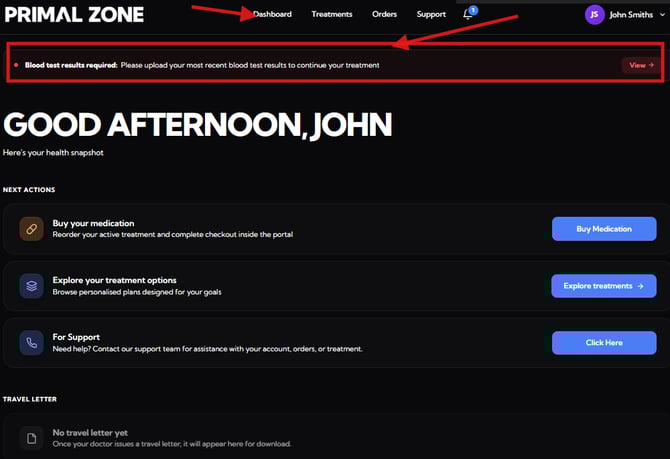
You will see a notification at the top:
“Blood test results required: Please upload your most recent blood test results to continue your treatment”
- Click “View” and upload your results
-
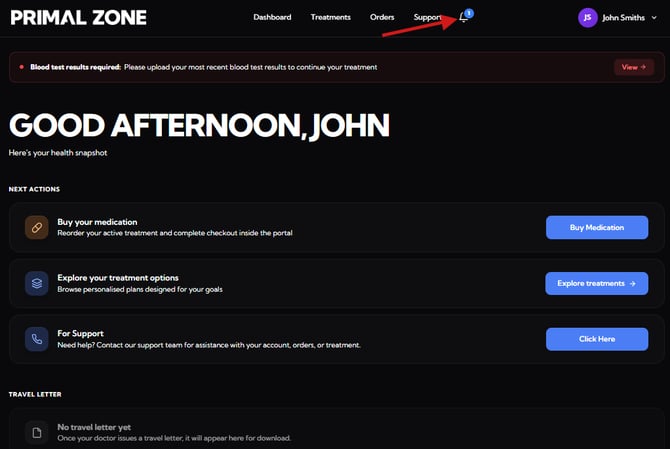
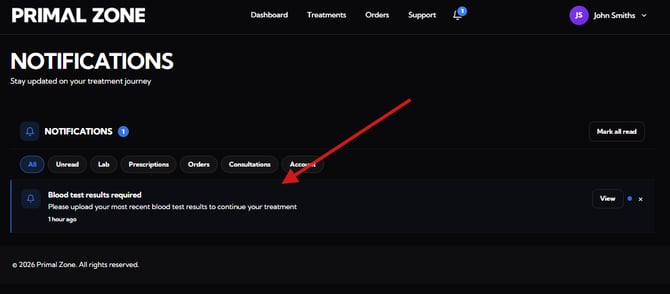
You can also access this via the Notifications section in your portal.
Need Help?
If you experience any issues uploading your results, please reach out to support and our team will assist you.
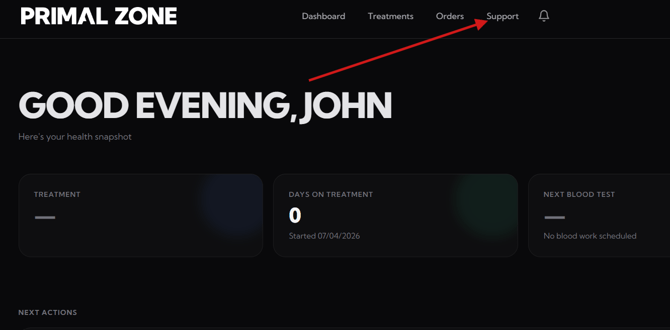
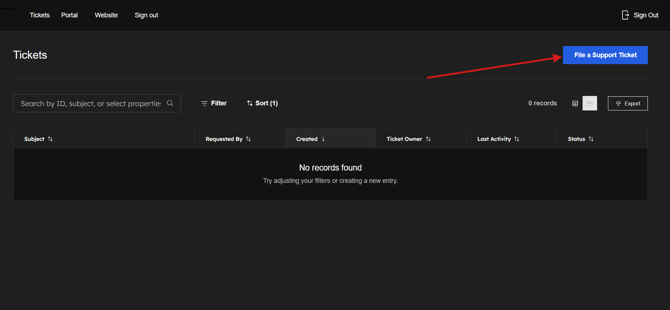
- Click the “Support” tab at the top of the portal
- You will be redirected to the Tickets page
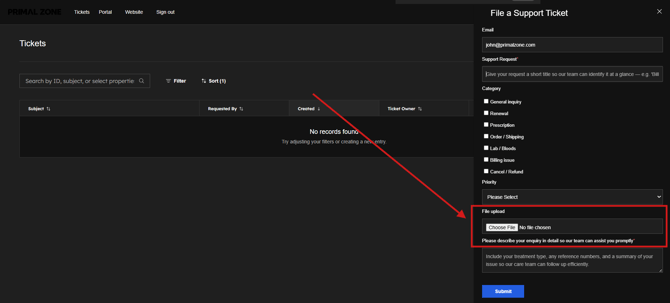
- Click “File a Support Ticket” to contact the team
- Please add a screenshot of the whole page where you encounter the issue. (This would help as identify and fix the problem efficiently)
Our team will assist you as soon as possible.