Step 1: Log in to Your Account
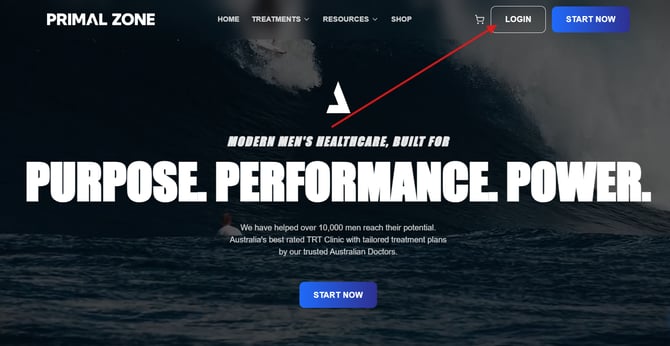
- Go to PrimalZone.com
- Click Login in the top right-hand corner
- Enter your email and continue into your patient portal
Step 2: Go to Buy Medication
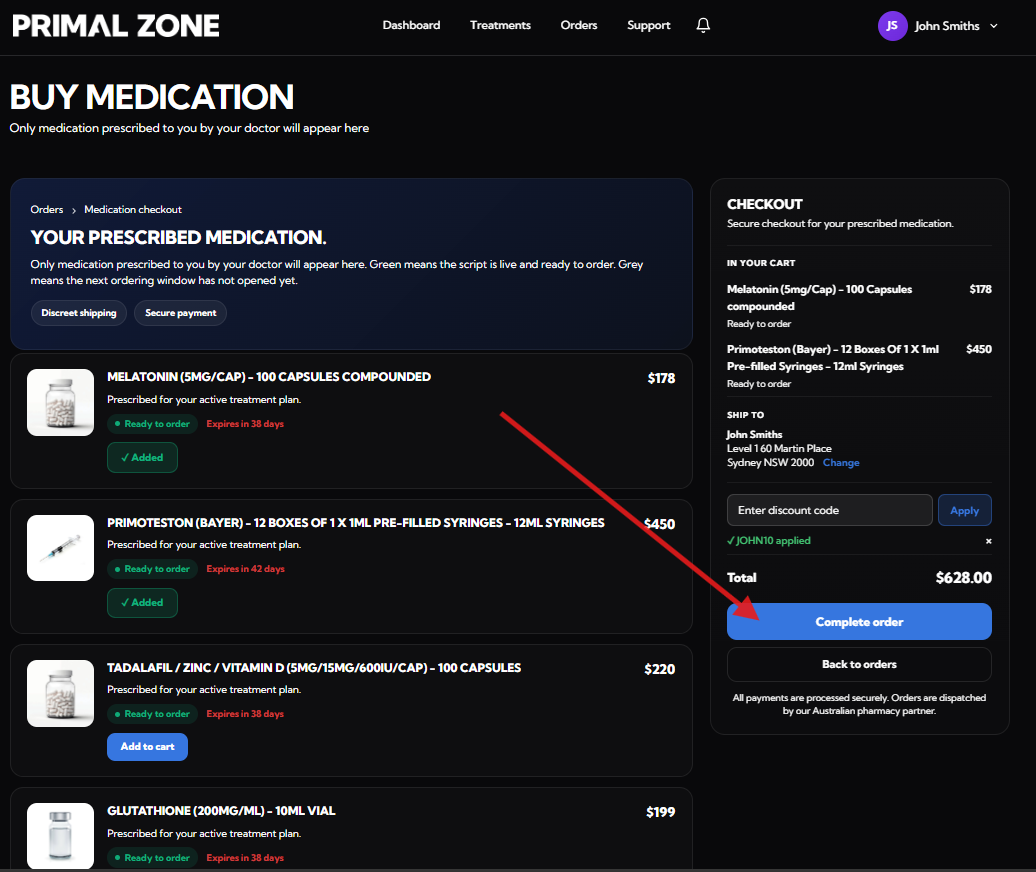
- From your Dashboard, click “Buy Medication”
- You will be routed to the Orders page
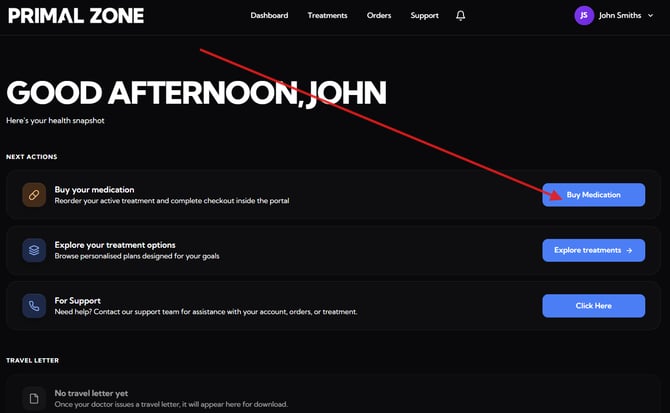
Step 3: View Your Available Prescriptions
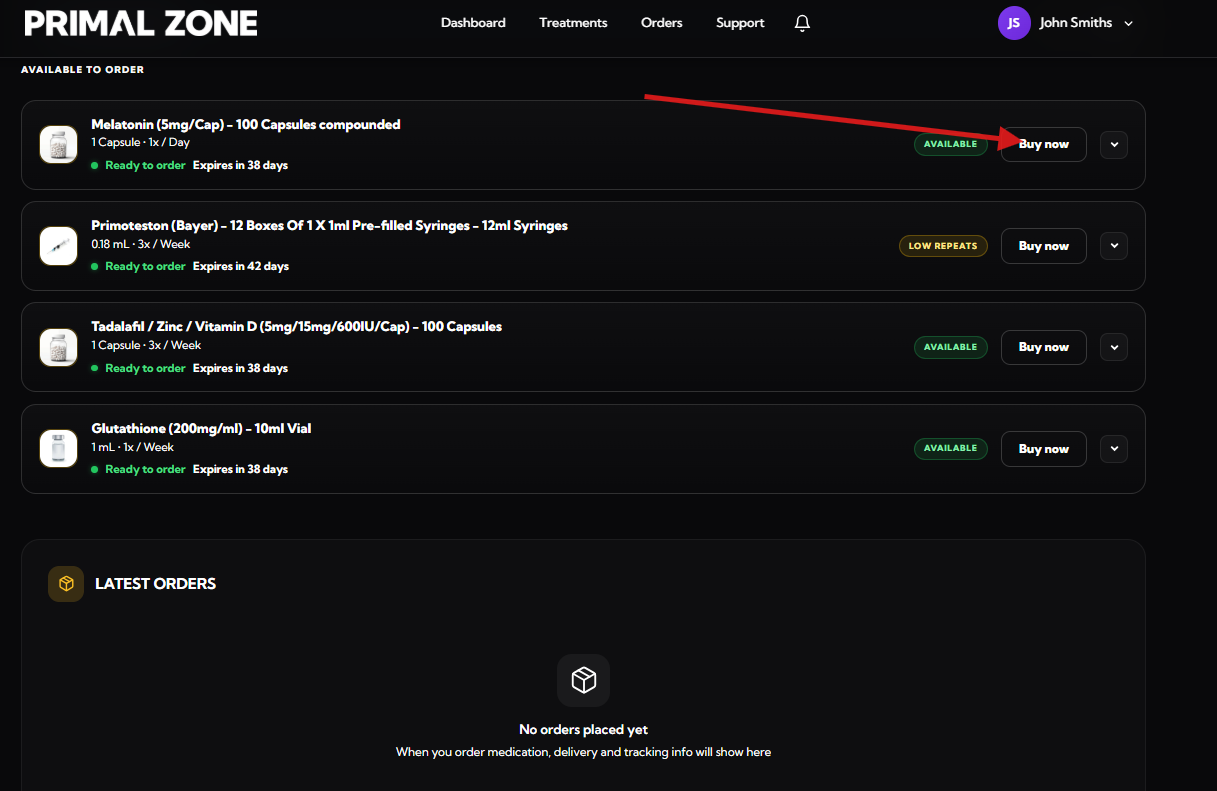
On the Orders page, you will see all medications available for purchase.
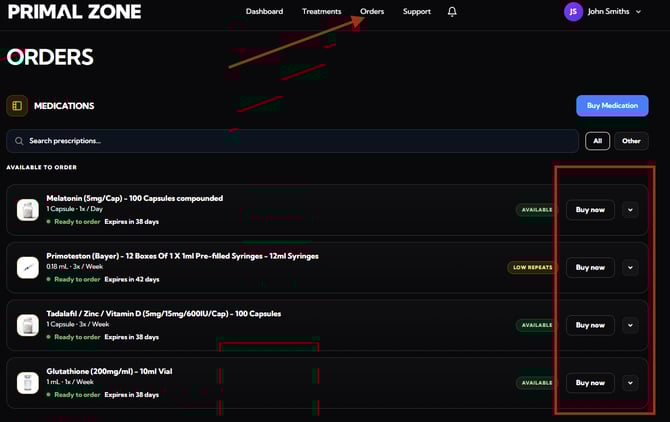
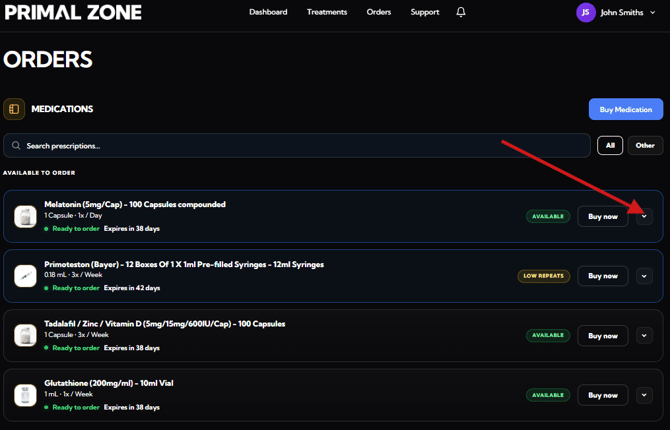
Click on the dropdown icon
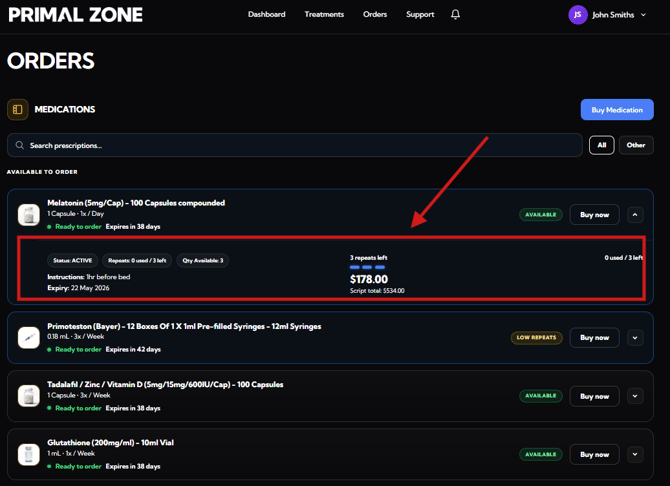
Each prescription will show:
- Status (Active / Available)
- Repeats remaining
- Quantity available
- Instructions
- Script expiry
- Cost of the medication
Step 4: Add Medication to Cart
- Click “Buy now”
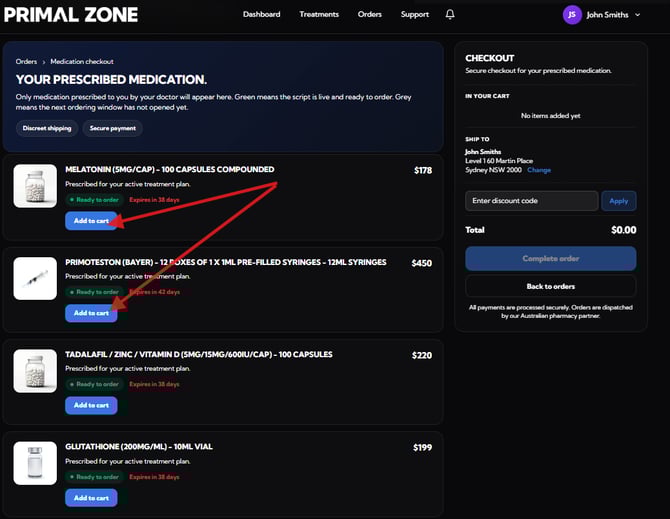
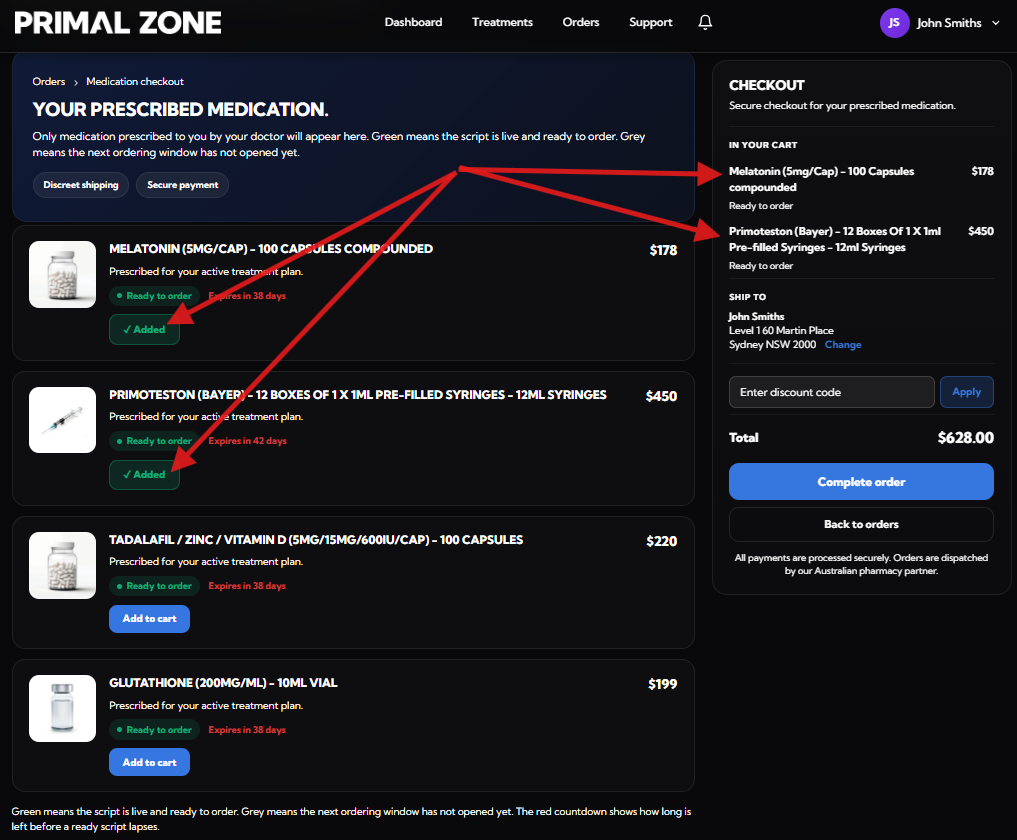
- Then click you'll see the medications you can buy. Click “Add to cart” for the medications you want to purchase
Step 5: Apply a Discount Code (Optional)
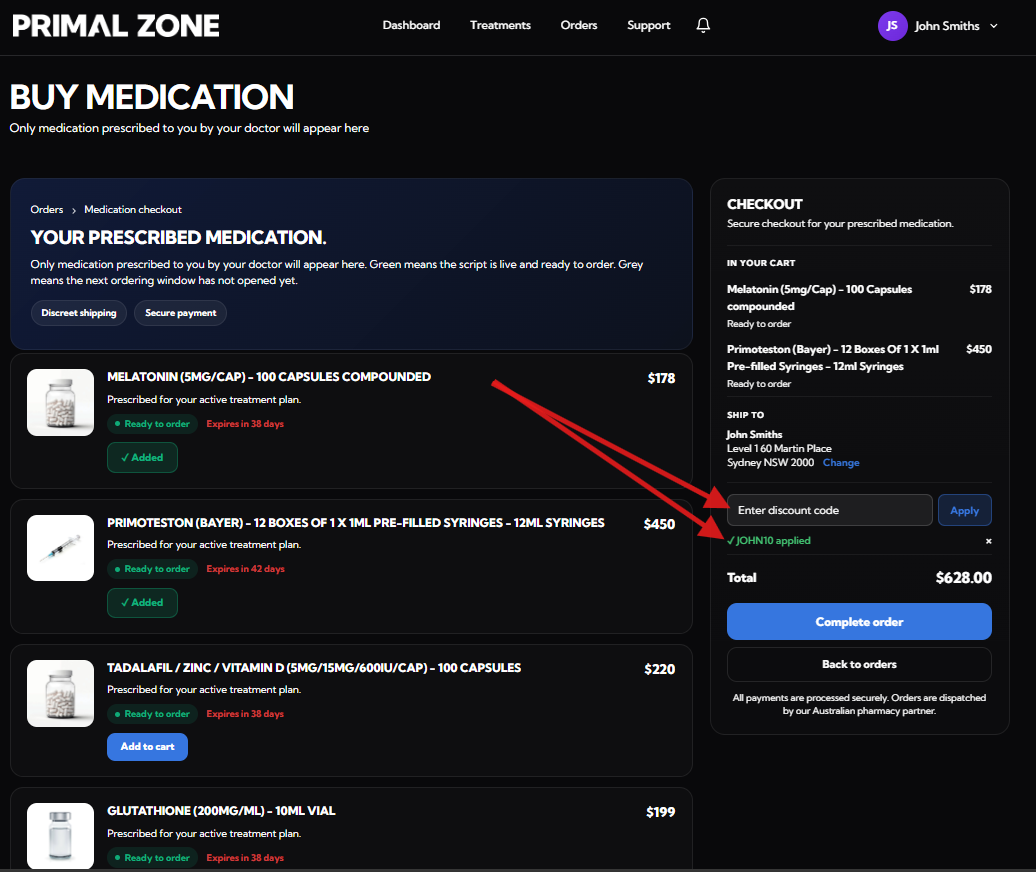
- Enter your discount code if you have one
- Click Apply
- The code will show as applied (final discount amount appears on the payment page)
Step 6: Complete Your Order
- Click “Complete order”
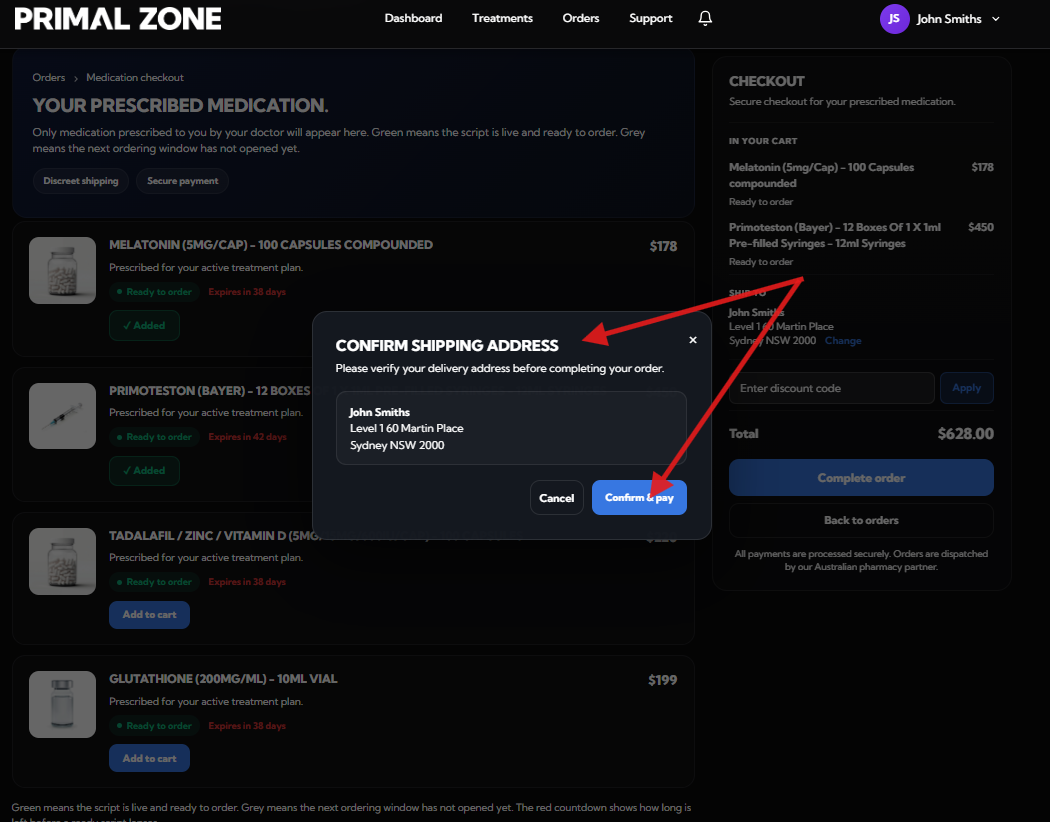
- Confirm your shipping address
- Click “Confirm & Pay”
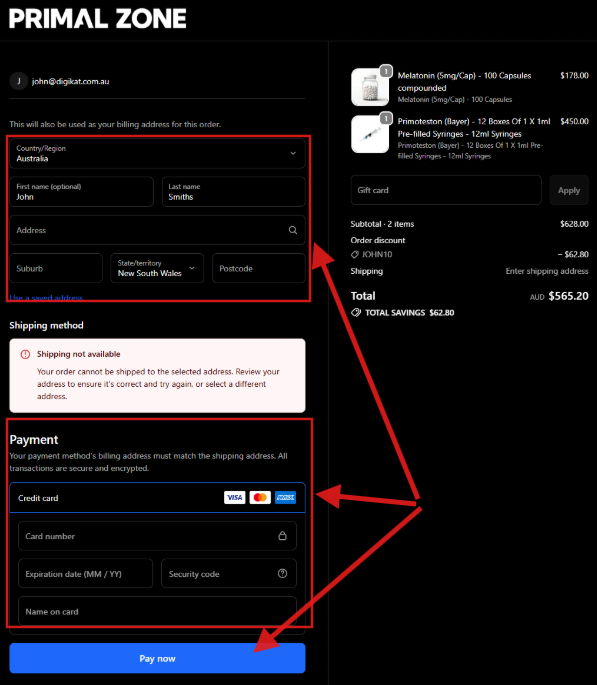
Step 7: Payment
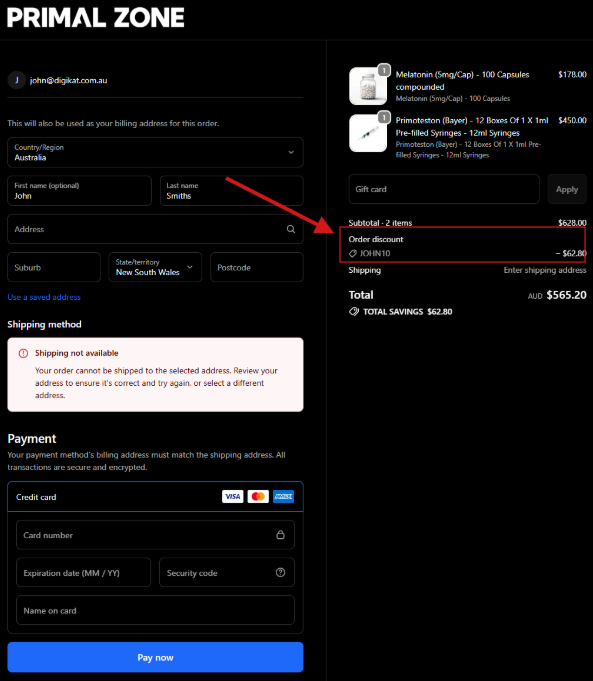
- You will be redirected to the payment page
- Review your order and discount (if applied)
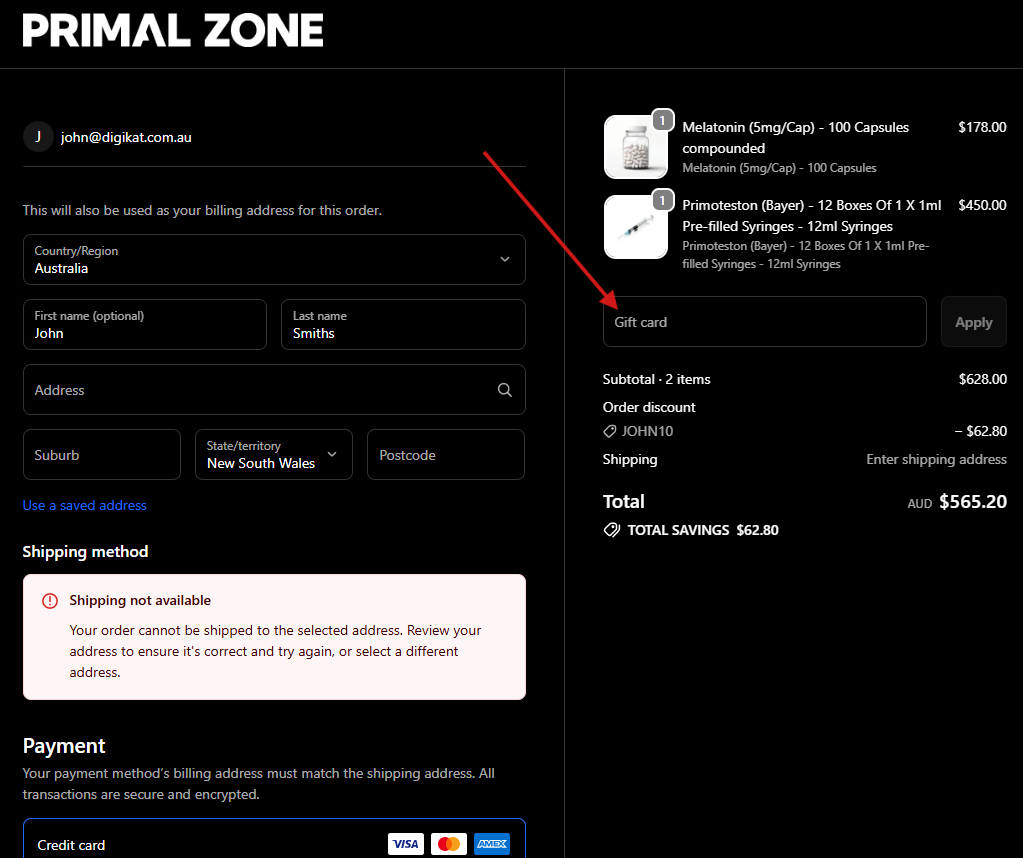
- You can also enter a gift card (From Shopify only) if available
- Enter your shipping and payment details
- Click “Pay now” to finalise your order
What Happens Next?
Once your order is completed:
- You will receive a confirmation
- Orders are typically dispatched within 10–14 business days
Need help?
If you're having trouble, you can reach out to our support team.
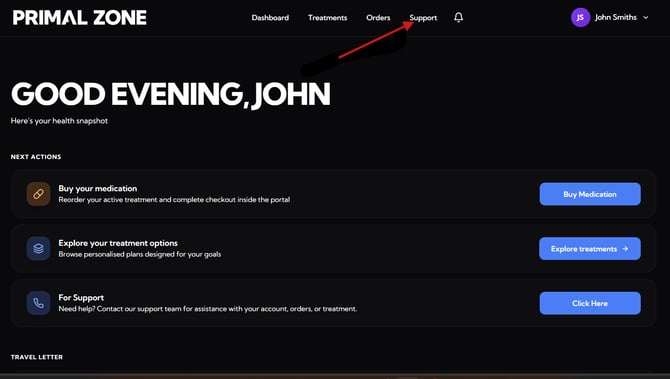
👉 Click the “Support” tab at the top of your patient portal
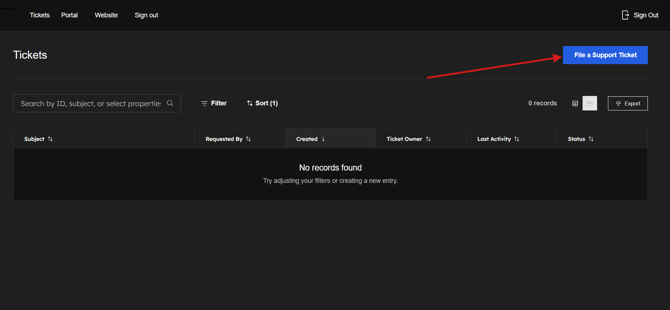
- You will be redirected to the Tickets page
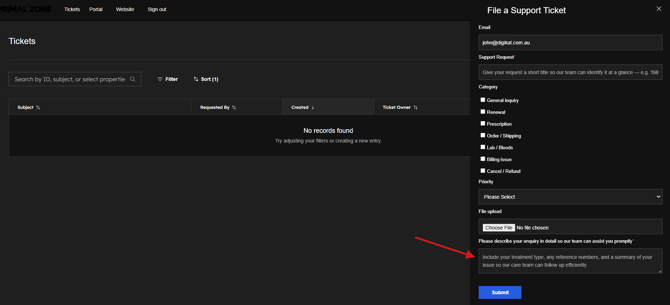
- Click “File a Support Ticket” to contact the team
- Please include a screenshot of the issue if possible