
Step 1: Go to the Primal Zone Website
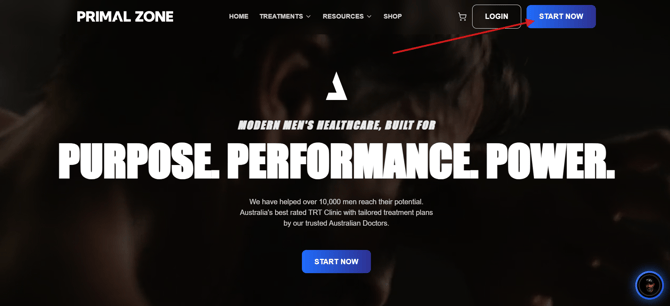
Visit PrimalZone.com and click “Start Now” in the top right-hand corner of the screen.
Step 2: Complete the Health Quiz
You will be guided through a short health quiz to assess your suitability for treatment.
Step 3: Blood Test History Check
As part of the quiz, you’ll be asked:
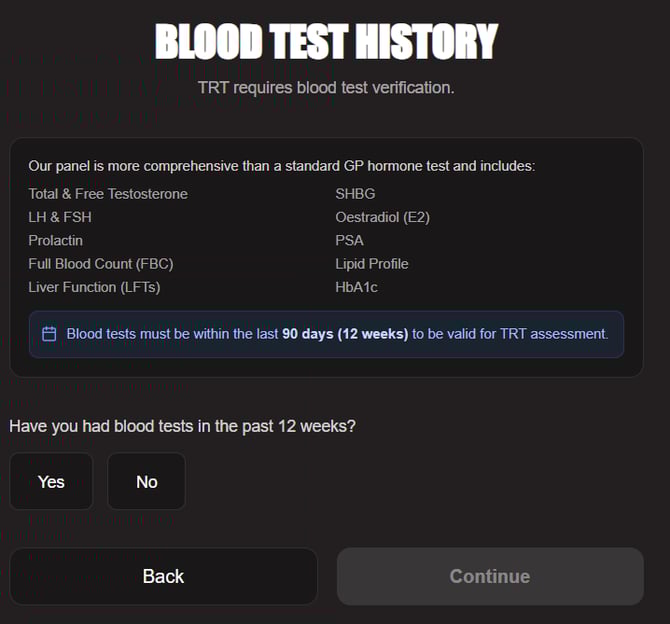
“Have you had blood tests in the past 12 weeks?”
If You Have Recent Blood Tests
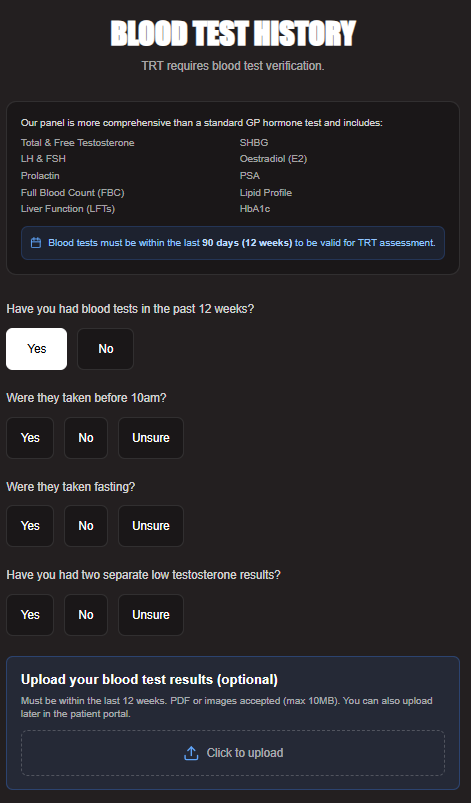
- Select Yes
- Complete the additional questions
- Upload your blood test results (if available)
Your results must:
- Be taken within the last 90 days (12 weeks)
- Please attend your blood test fasted and before 9:00 AM for accurate results
If You Do NOT Have Recent Blood Tests
- Select No
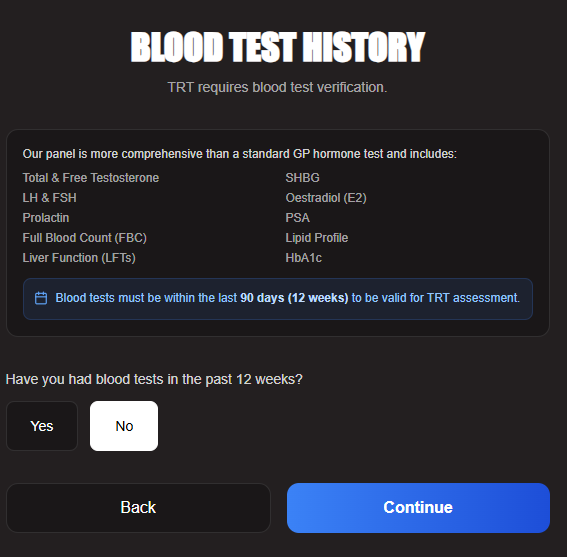
- You will be guided to continue the process
- You’ll be prompted to provide:
- Medicare details
- Photo ID (e.g. Driver’s Licence or Passport)
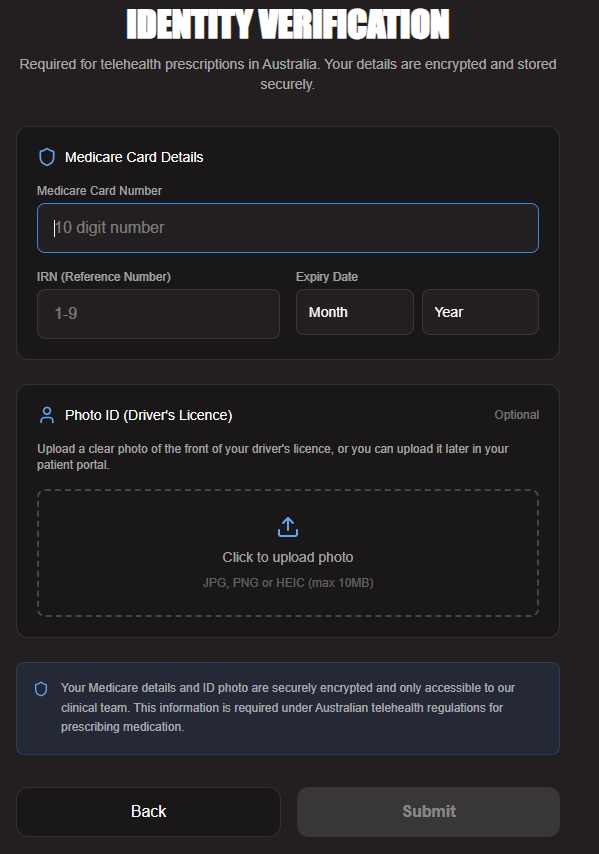
Step 4: Eligibility & Next Steps
Based on your responses, you may see a message confirming you are eligible for a treatment program (e.g. Low Testosterone Program).
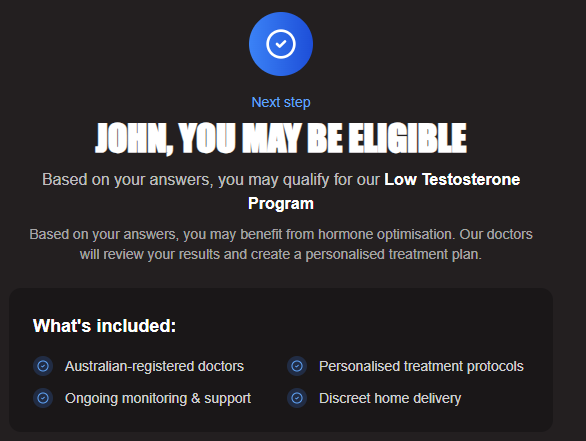
-
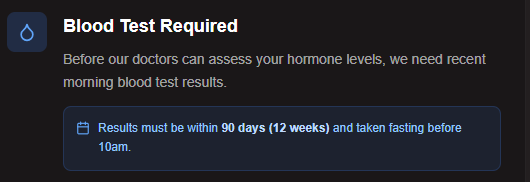
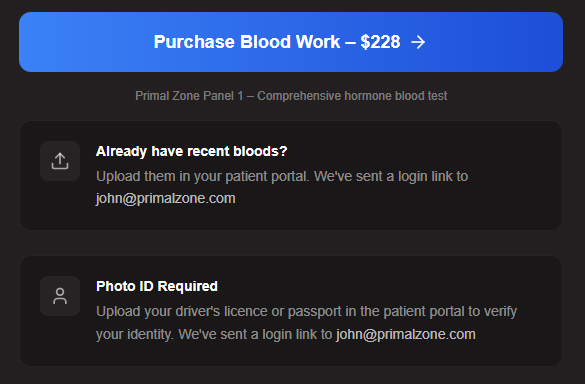
You will be advised that a Blood Test is required and the time fasting is needed to be taken
- For the most accurate results, please attend your blood test fasted and before 9:00 AM.
- You'll see the next steps including checking your email for your secure login link
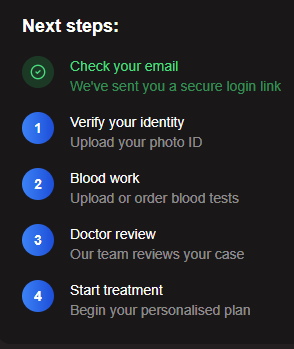
- Purchase Blood Test Kit
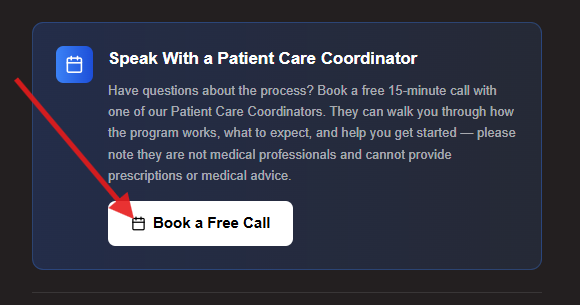
- You'll also have the option to speak with a Patient Care Coordinator if you'd prefer to talk to a real person before taking the next step.
Step 5: Access Your Patient Portal
You will receive a secure login link via email to access your patient portal, where you can:
- Upload blood test results
- Upload ID documents
- Continue your treatment process
Step 6: Upload Blood Test Results
If you purchased a blood test or need to upload results later:
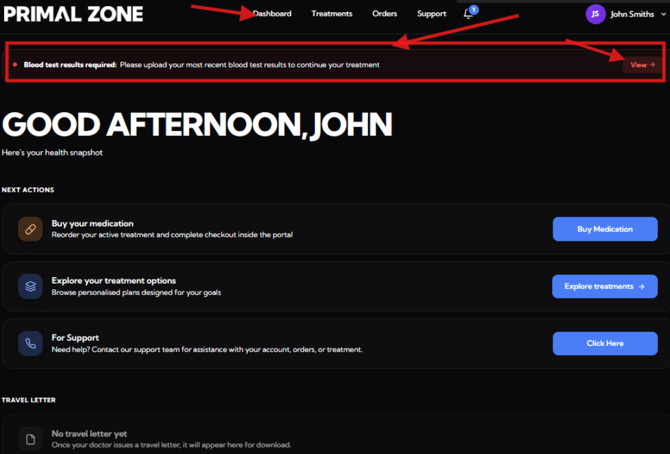
- In your patient portal at the top of the screen in your Dashboard page
-
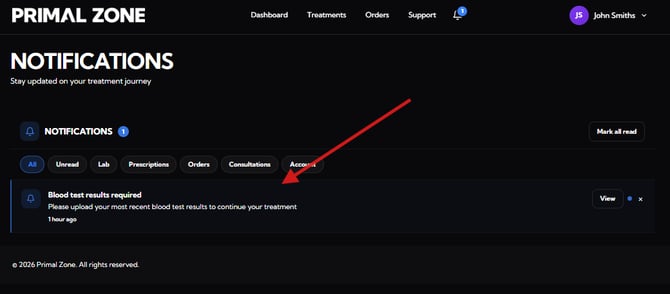
You will see a notification at the top:
“Blood test results required: Please upload your most recent blood test results to continue your treatment”
- Click “View” and upload your results
-
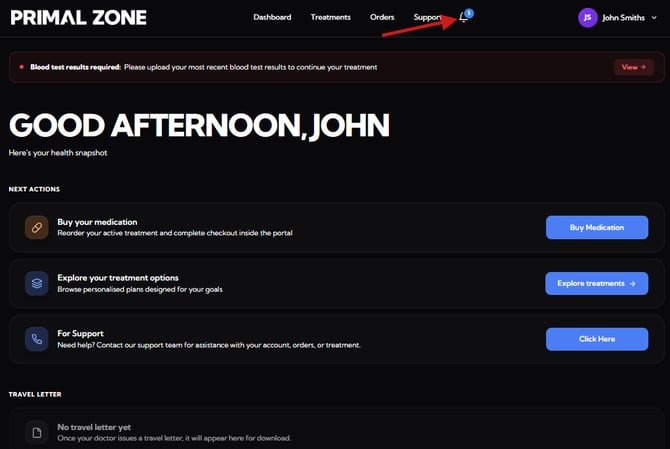
You can also access this via the Notifications section in your portal (Click the bell icon).
What Happens Next?
Once your blood test results are submitted, our clinical team will review them as part of your treatment assessment. You will be contacted in the next 2 - 3 business days with the next steps.
Need help?
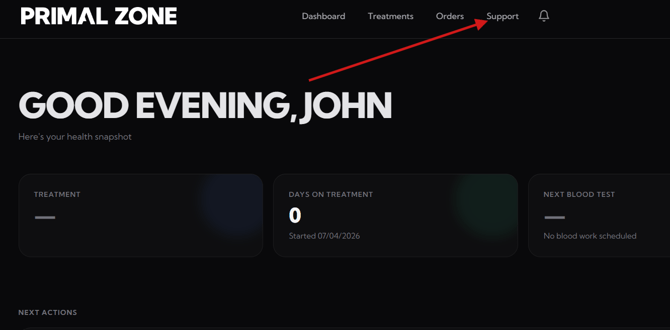
If you're having trouble, you can reach out to our support team inside your patient portal.
- Click the “Support” tab at the top of the portal
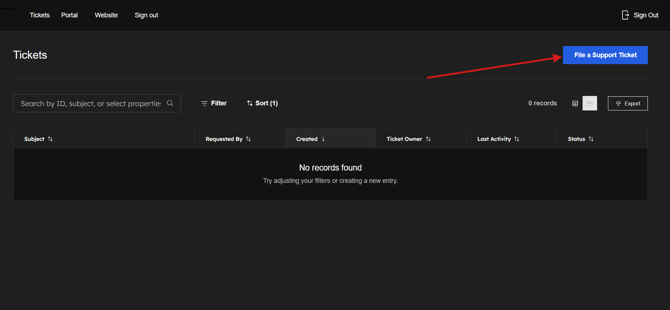
- You will be redirected to the Tickets page
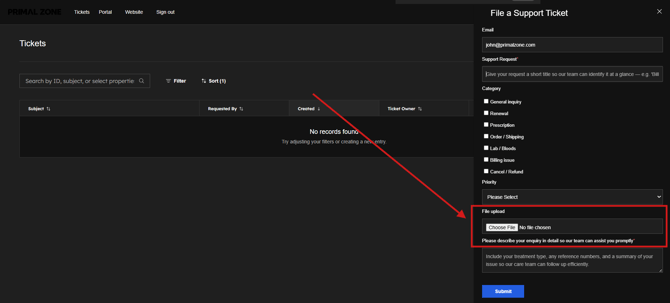
- Click “File a Support Ticket” to contact the team
- Please add a screenshot of the whole page where you encounter the issue. (This would help as identify and fix the problem efficiently)
Our team will assist you as soon as possible.