
How to sign in
- Go to primalzone.com
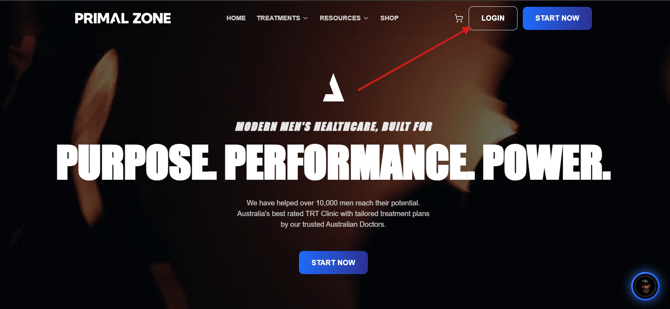
- Click Login in the top-right corner
- Enter the email address you use with Primal Zone
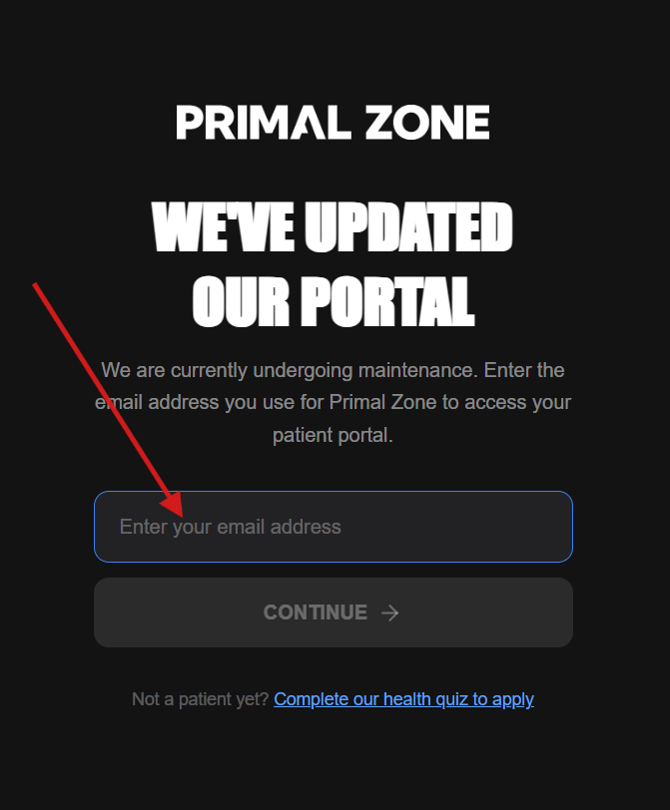
- Click Continue
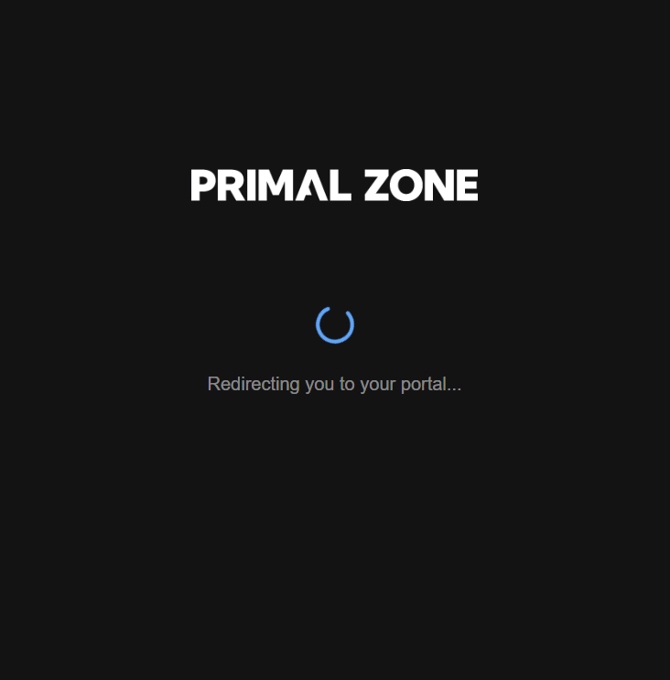
That's it — the site takes care of the rest and sends you to the right place.
What happens next
Depending on where you're at with us, one of three things will happen:
You're already set up with a password You'll go straight to your patient dashboard. No extra steps.
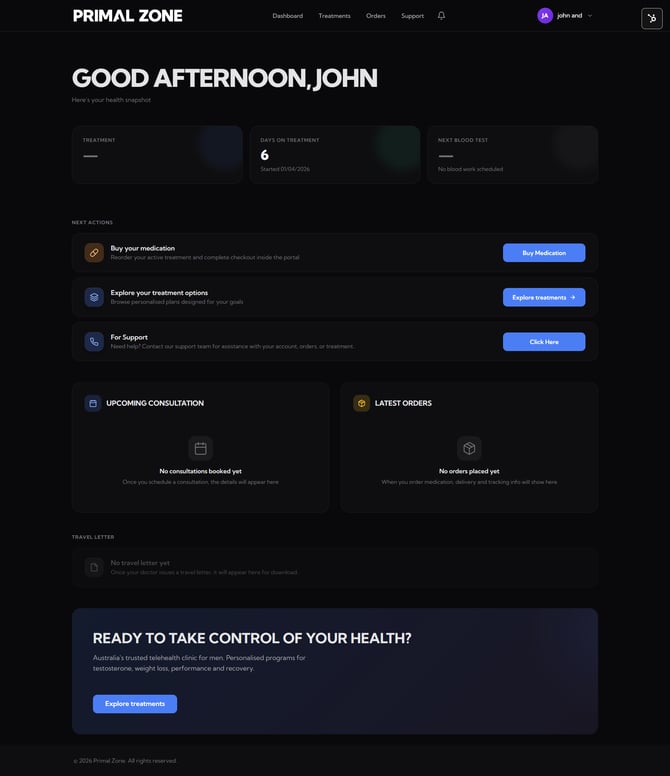
You're a patient but haven't set a password yet You'll see a "Welcome Back" message with a button to create your password. Click it, choose a password, and you're in.
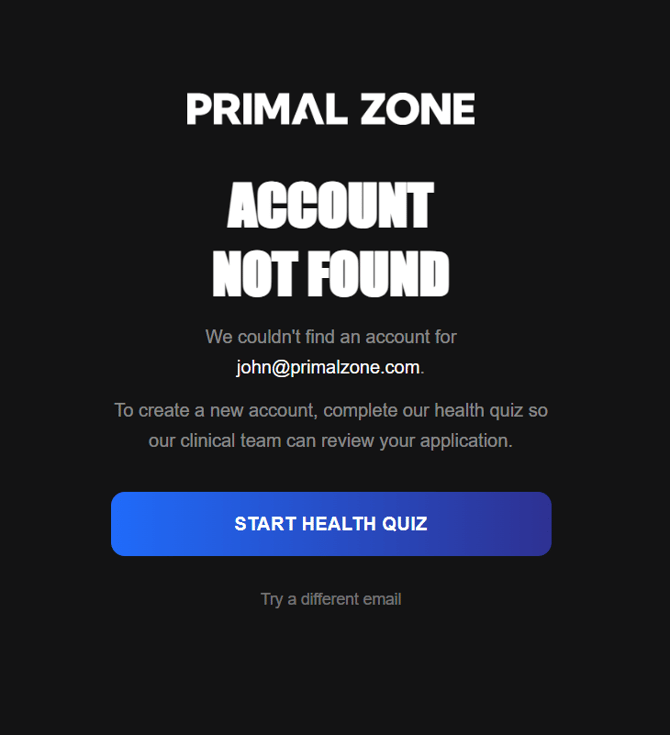
You're not a patient yet You'll see an "Account Not Found" message with a link to start our health quiz. Once you complete the quiz, you'll be set up and can sign in.
Tips
- Use the same email you signed up with — if you try a different one, the site won't recognise you, and might ask you to start the health quiz again.
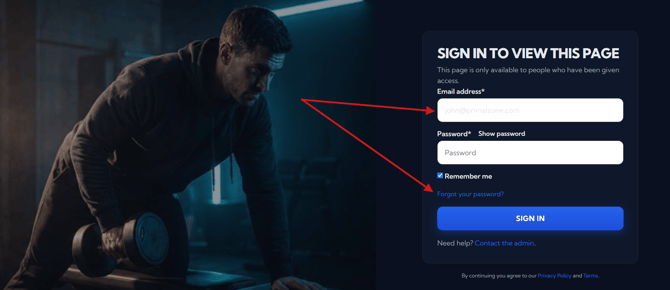
- If you can't remember your password, click Forgot your password? on the patient portal sign-in screen to reset it.
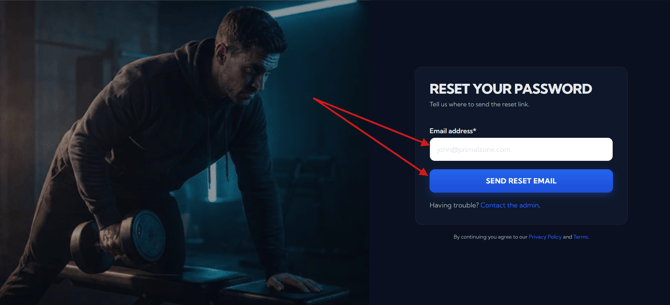
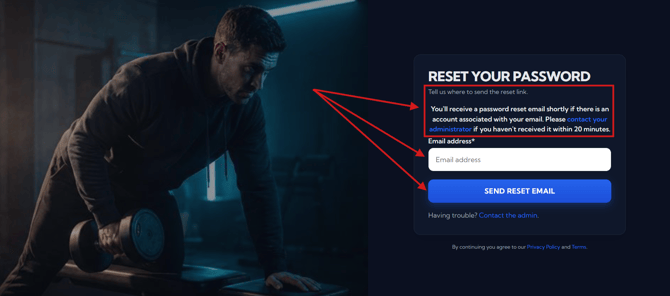
- You should have received an email with the subject line “Password reset email” from The Primal Zone Team (noreply@primalzone.com.au). If you can’t find it, please check your spam, junk, or other folders, as it may have been misdirected. You can also search for noreply@primalzone.com.au in your search bar in your inbox to quickly locate all emails from Primal Zone, including the password reset email.
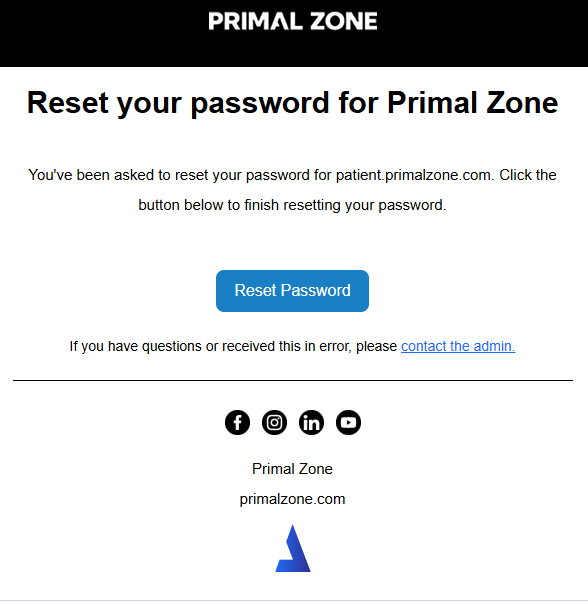
- Click on “Reset Password” to be routed to the password reset page. Your new password must be at least 12 characters long and include at least 3 of the following: a lowercase letter, an uppercase letter, a number, or a special character. You can use a format like PassWord1!2@, then click “Save Password” to complete the process.
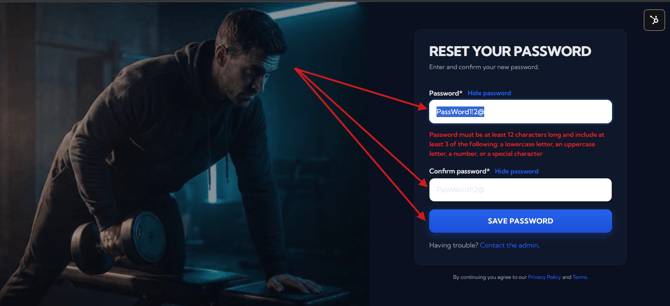
- Once successful, you will be routed to you Patient Portal.
Need help?
If you're having trouble signing in, click Contact the admin on the sign-in screen, or reach out to our support team and we'll sort it out for you.
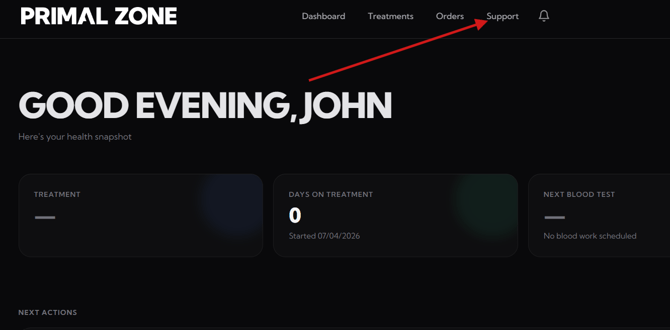
- Click the “Support” tab at the top of the portal
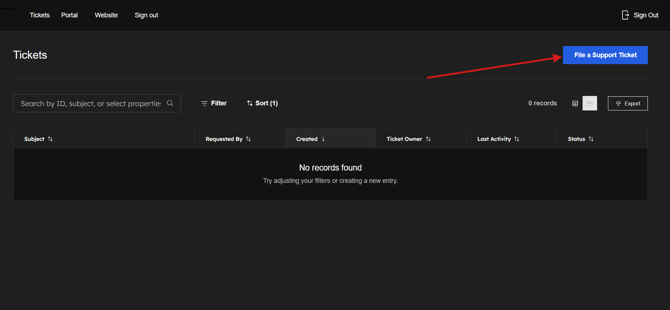
- You will be redirected to the Tickets page
- Click “File a Support Ticket” to contact the team
- Please add a screenshot of the whole page where you encounter the issue. (This would help as identify and fix the problem efficiently)
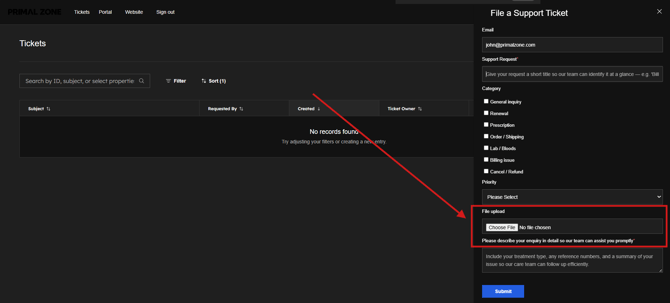
Our team will assist you as soon as possible.